---
title: What is a Custom Index?
description: What is a custom index
---
[Skip to content](https://support.bundledocs.com/knowledge/what-is-a-custom-index-#main-content)
[](https://www.bundledocs.com/)
Open main navigation
Close main navigation
How can we help you?
- There are no suggestions because the search field is empty.
1. [Help Centre](https://support.bundledocs.com/knowledge?hsLang=en)
2. [Generate, Customise & Format Bundles](https://support.bundledocs.com/knowledge/generate-customise-format-bundles?hsLang=en)
3. [Index & Custom Index](https://support.bundledocs.com/knowledge/generate-customise-format-bundles?hsLang=en#index-custom-index)
# What is a Custom Index?
## The Custom Index is a specially formatted Word document that uses content controls and custom codes. Once uploaded to the bundle, Bundledocs can read the codes and populate the information automatically.
You can replace the standard index automatically produced by Bundledocs with a  **Custom Index.** The coding in this document will dynamically update and insert the bundle data such as document ordering, names, dates, and page numbers.
### [What can you do with a custom index](https://support.bundledocs.com/knowledge/what-is-a-custom-index-#What-can-you-do)
### [How to upload a custom index](https://support.bundledocs.com/knowledge/what-is-a-custom-index-#How-to-upload)
### [My index is not showing](https://support.bundledocs.com/knowledge/what-is-a-custom-index-#index-not-appearing)
**Top Tip: contact us at support@bundledocs.com to receive our samples file, where you can find a variety of custom index samples. This documents can be uploaded straight away or be amended to your needs.**
You can format your  **Custom Index** to reflect your organisation’s or the court’s preferred style. This can include:
- **Court Headers**: Such as “IN THE FAMILY COURT” or “CASE NO:…” using editable content controls.
- **Shaded Headings**: Apply colour shading to headings to visually separate sections or highlight key areas.
- **Fonts and Borders**: Customise fonts, borders, and column layouts to match your preferred style.
- **Numbering Styles**: Choose your document ordering between Roman numerals, decimals, letters or custom formats.
- **Table Layouts**: Use Word tables to structure the index, ensuring all non-coded content is inside table cells for compatibility.
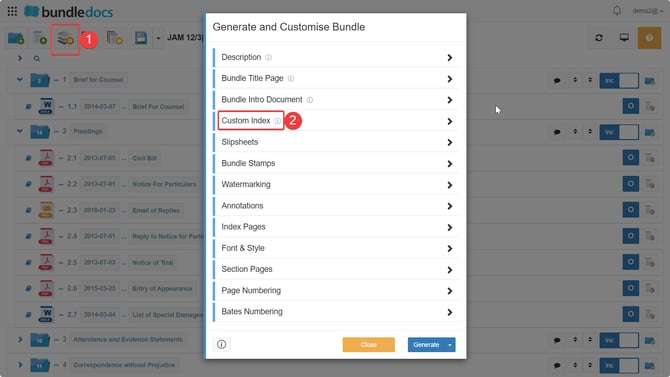
1\. To upload a  **Custom Index** go to  **Generate and customise bundle** \> **Custom Index**.
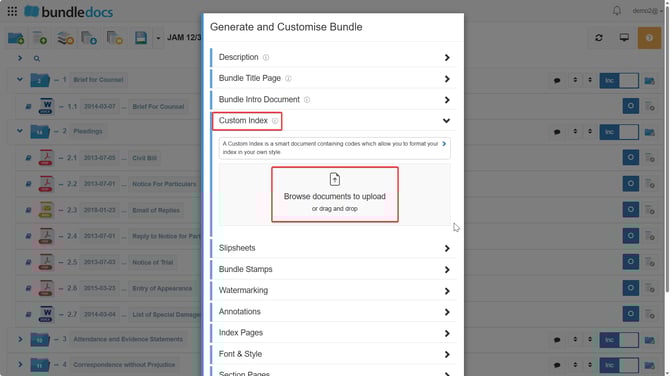
2\. Here you can **Drag and Drop** or **Browse to Upload** the  **Custom Index**.
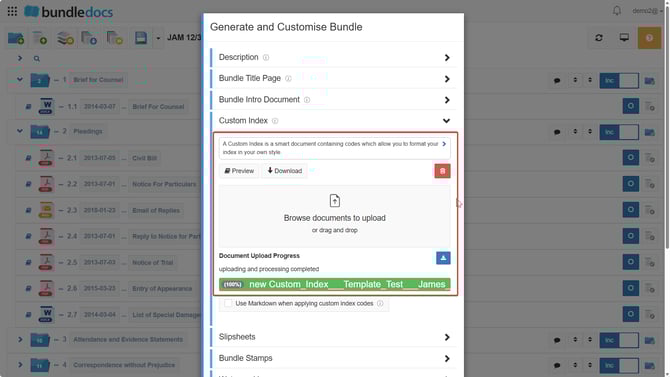
3\. Once your document is uploaded it will appear in 100% and in green.
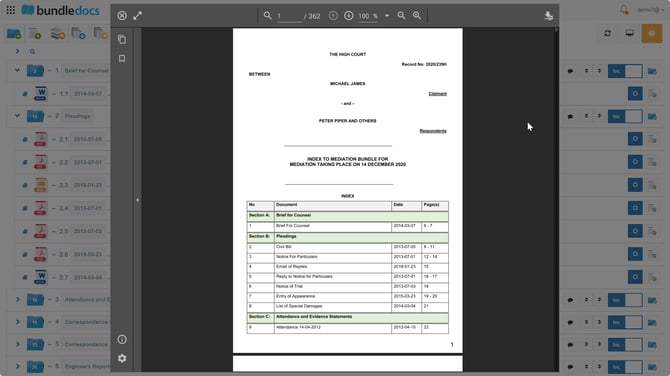
4\. Now generate the bundle to see your  **Custom Index** applied.
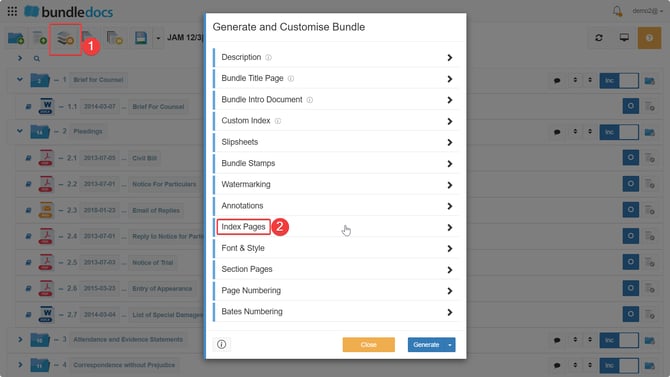
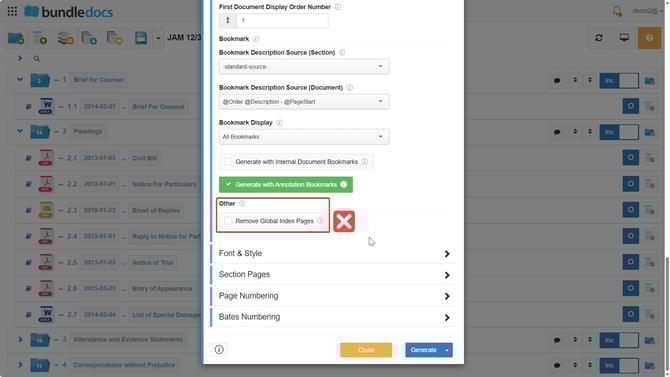
**NOTE: You don't need to remove the standard index, as the custom index will override and replace it. Please ensure you don't tick "Remove Global Index Pages" under Generate and customise bundle \> Index Pages.**
****
Enabling this setting will produce the bundle with no index, so ensure this is not ticked unless that is what you want.
****
- [Bundling](https://support.bundledocs.com/knowledge/bundling?hsLang=en#main-content)
- [Workspace, Bundles & Templates](https://support.bundledocs.com/knowledge/bundling?hsLang=en#workspace-bundles-templates)
- [Sections](https://support.bundledocs.com/knowledge/bundling?hsLang=en#sections)
- [Working with Documents](https://support.bundledocs.com/knowledge/bundling?hsLang=en#working-with-documents)
- [Working with Dates](https://support.bundledocs.com/knowledge/bundling?hsLang=en#working-with-dates)
- [Redact, Annotate & PDF Editing](https://support.bundledocs.com/knowledge/redact-annotate-pdf-editing?hsLang=en#main-content)
- [Document Previewer](https://support.bundledocs.com/knowledge/redact-annotate-pdf-editing?hsLang=en#document-previewer)
- [Annotate](https://support.bundledocs.com/knowledge/redact-annotate-pdf-editing?hsLang=en#annotate)
- [PDF Editing](https://support.bundledocs.com/knowledge/redact-annotate-pdf-editing?hsLang=en#pdf-editing)
- [Text Editing](https://support.bundledocs.com/knowledge/redact-annotate-pdf-editing?hsLang=en#text-editing)
- [Generate, Customise & Format Bundles](https://support.bundledocs.com/knowledge/generate-customise-format-bundles?hsLang=en#main-content)
- [Export Formats & Core Bundles](https://support.bundledocs.com/knowledge/generate-customise-format-bundles?hsLang=en#export-formats-core-bundles)
- [Optimise Bundle](https://support.bundledocs.com/knowledge/generate-customise-format-bundles?hsLang=en#optimise-bundle)
- [Index & Custom Index](https://support.bundledocs.com/knowledge/generate-customise-format-bundles?hsLang=en#index-custom-index)
- [Bookmarks](https://support.bundledocs.com/knowledge/generate-customise-format-bundles?hsLang=en#bookmarks)
- [Section Pages](https://support.bundledocs.com/knowledge/generate-customise-format-bundles?hsLang=en#section-pages)
- [Digital Numbering](https://support.bundledocs.com/knowledge/generate-customise-format-bundles?hsLang=en#digital-numbering)
- [Bates Numbering](https://support.bundledocs.com/knowledge/generate-customise-format-bundles?hsLang=en#bates-numbering)
- [Sharing & Collaboration](https://support.bundledocs.com/knowledge/sharing-collaboration?hsLang=en#main-content)
- [Password Protect Bundle](https://support.bundledocs.com/knowledge/sharing-collaboration?hsLang=en#password-protect-bundle)
- [Secure Share](https://support.bundledocs.com/knowledge/sharing-collaboration?hsLang=en#secure-share)
- [Collaboration](https://support.bundledocs.com/knowledge/sharing-collaboration?hsLang=en#collaboration)
- [Integrations & Uploading](https://support.bundledocs.com/knowledge/integrations-uploading?hsLang=en#main-content)
- [Integrations](https://support.bundledocs.com/knowledge/integrations-uploading?hsLang=en#integrations)
- [Advanced Features](https://support.bundledocs.com/knowledge/advanced-features?hsLang=en#main-content)
- [Volumes](https://support.bundledocs.com/knowledge/advanced-features?hsLang=en#volumes)
- [OCR](https://support.bundledocs.com/knowledge/advanced-features?hsLang=en#ocr)
- [Frequently Asked Questions](https://support.bundledocs.com/knowledge/frequently-asked-questions?hsLang=en)
- [Admin & Reporting](https://support.bundledocs.com/knowledge/admin-reporting?hsLang=en#main-content)
- [Manage Users & Groups](https://support.bundledocs.com/knowledge/admin-reporting?hsLang=en#manage-users-groups)
- [Account & Billing](https://support.bundledocs.com/knowledge/account-billing?hsLang=en#main-content)
- [Account Settings](https://support.bundledocs.com/knowledge/account-billing?hsLang=en#account-settings)
- [Billing](https://support.bundledocs.com/knowledge/account-billing?hsLang=en#billing)
© 2025 Bundledocs is a trademark of Meditati Ltd. [Terms of Service](https://www.bundledocs.com/terms-of-service) [Privacy Policy](https://www.bundledocs.com/privacy-policy) [Usage of Cookies](https://www.bundledocs.com/privacy-policy/#EUCookieLegislationCompliance)