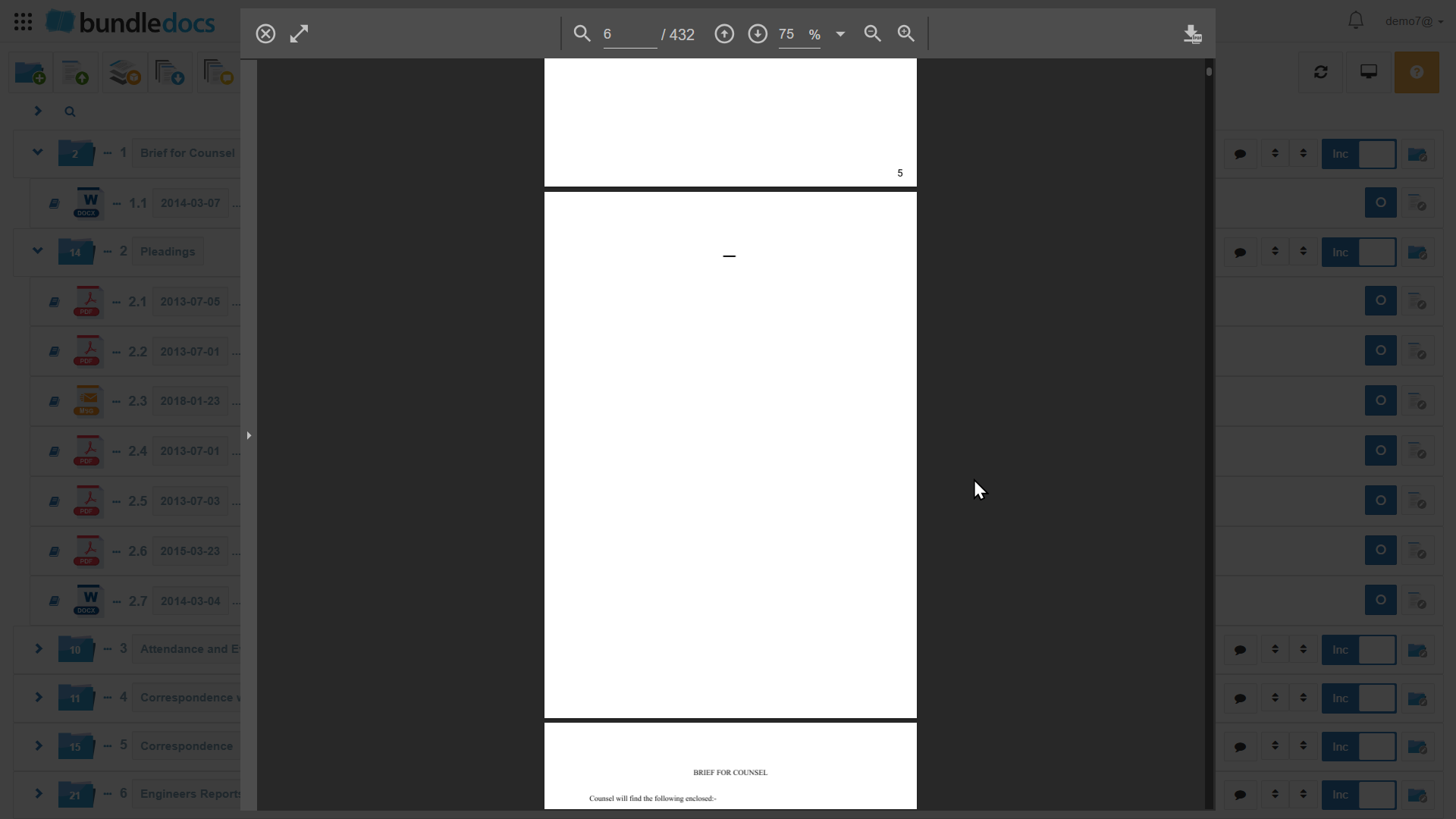
To apply Vacat Pages in to your bundle:
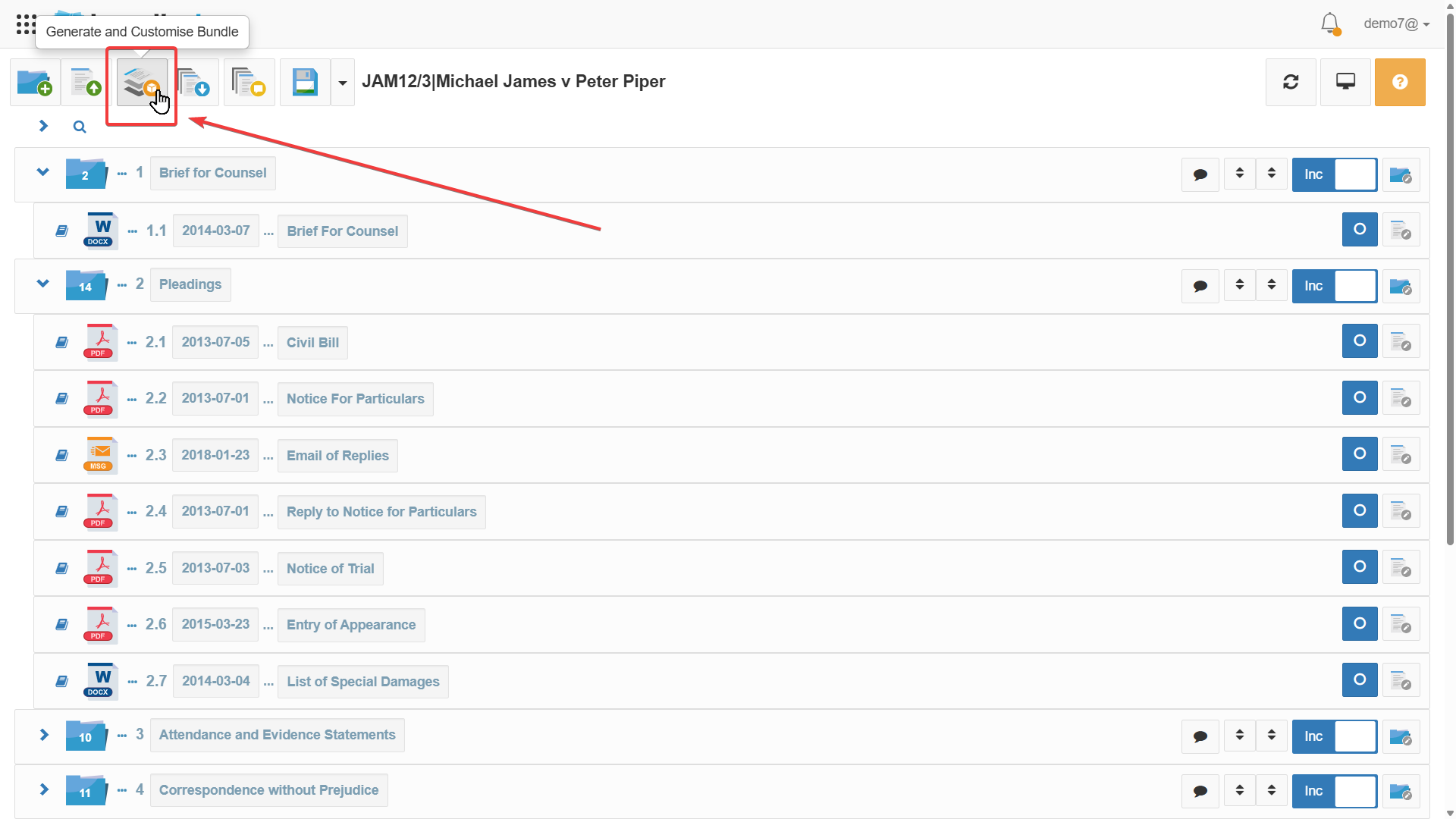
1. Go to  Generate and Customize Settings.
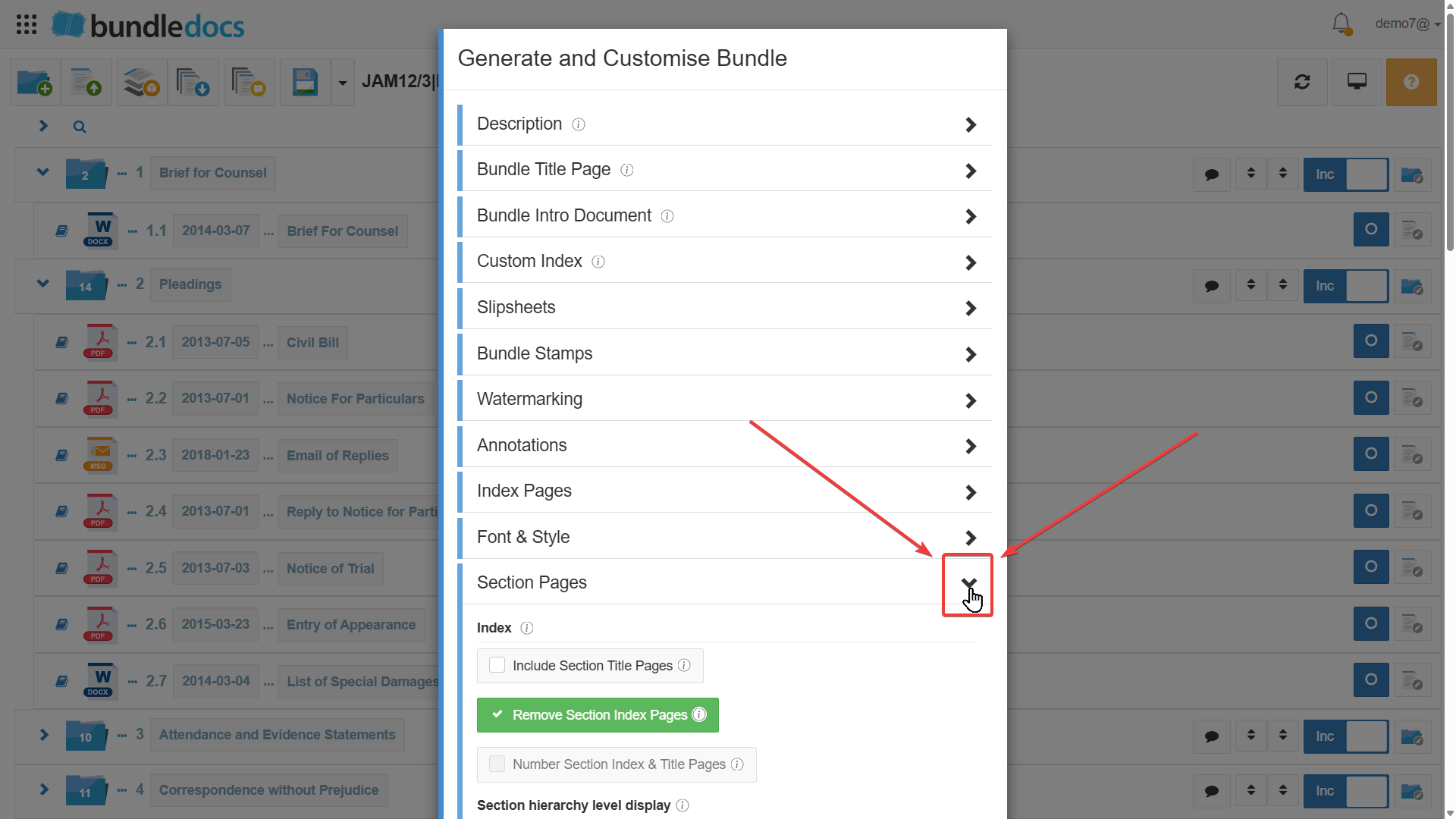
2. Expand the Section Pages dropdown.
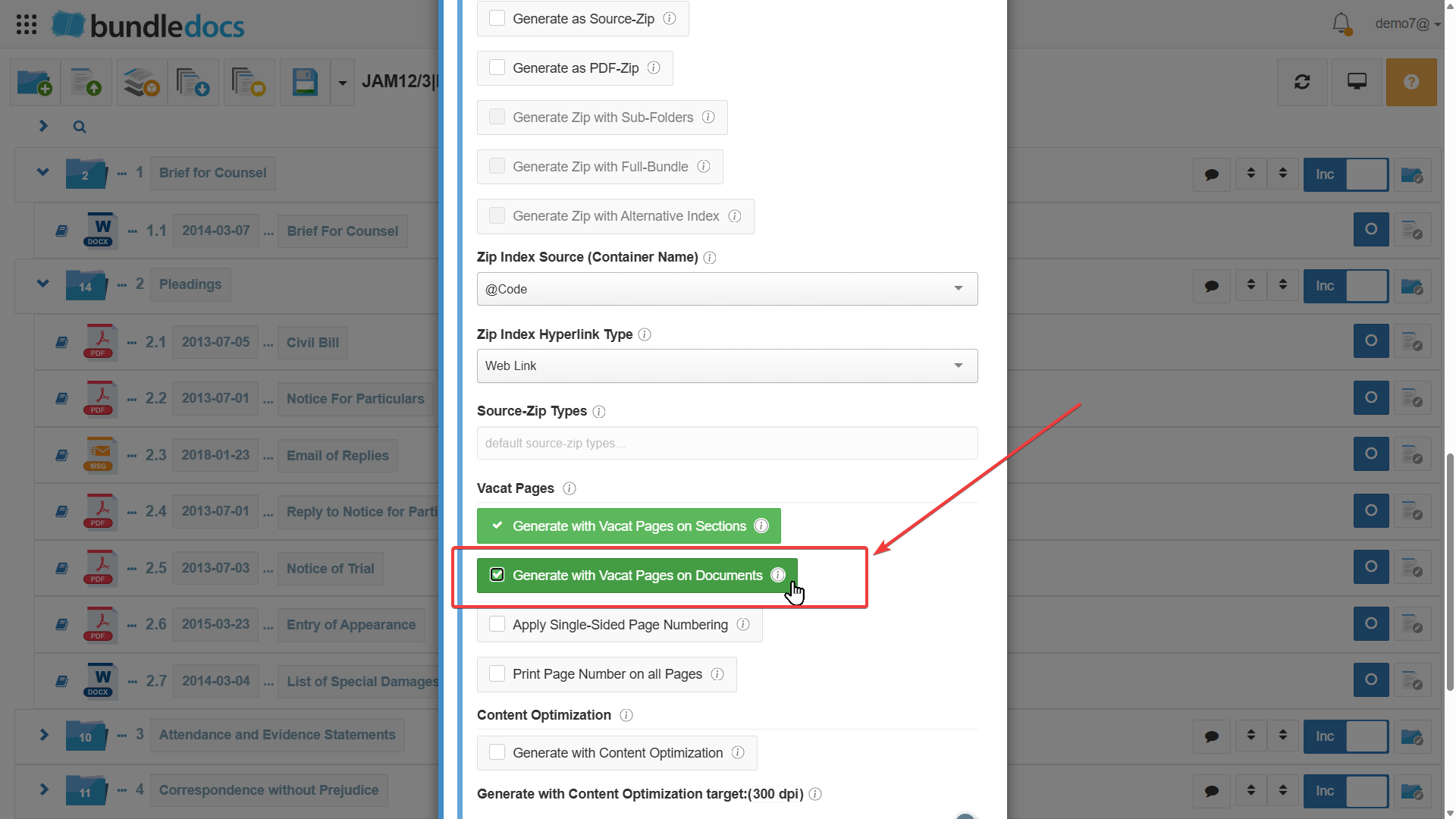
3. Scroll down to the Vacat Page heading and tick the option Generate with Vacat Pages on Sections. This setting will ensure the first page of each section starts on the right.
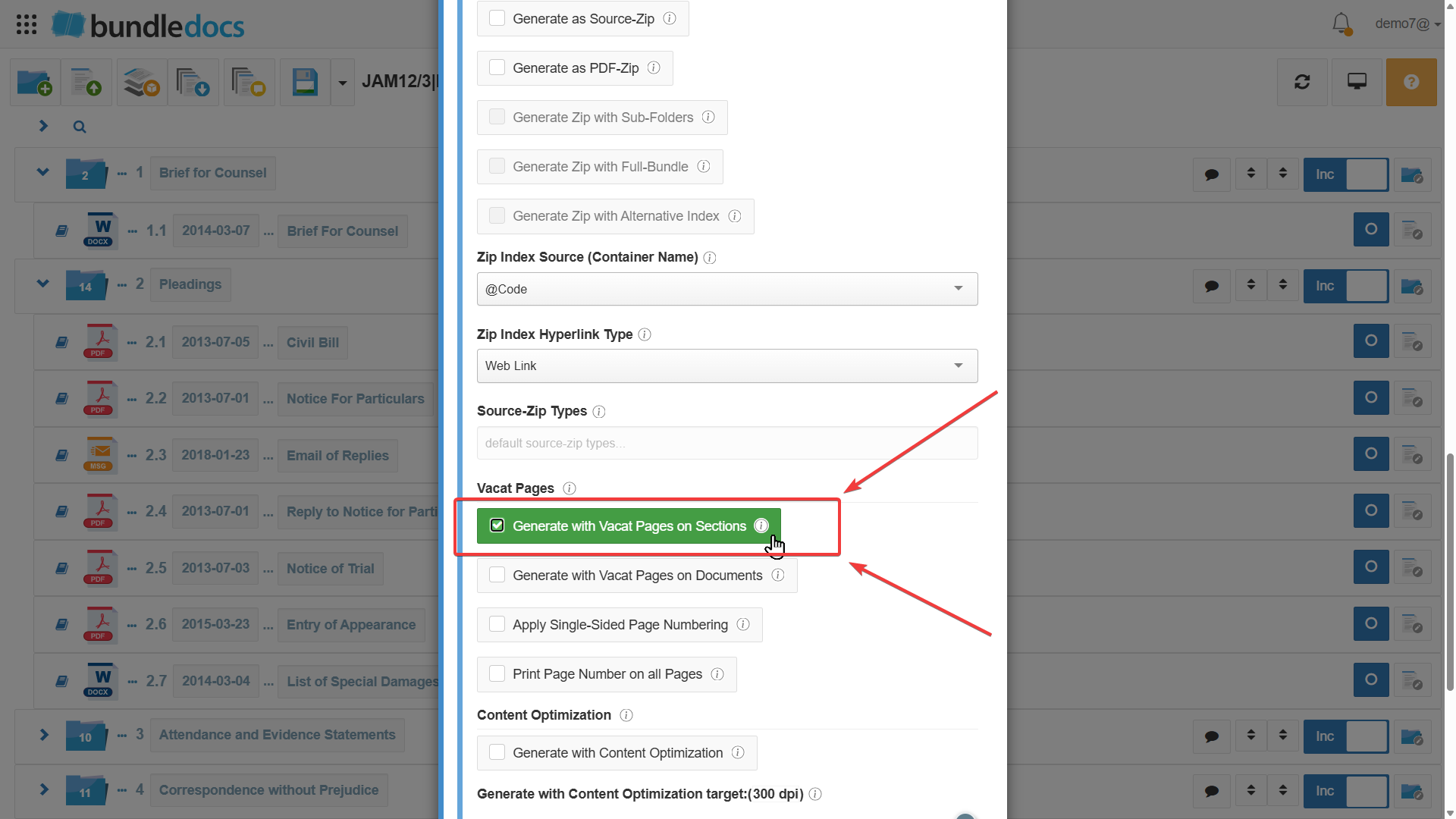
4. Once the above setting is ticked you can also choose to apply Generate with Vacat Page on Documents. This setting ensures the first page of each uploaded document starts on the right.
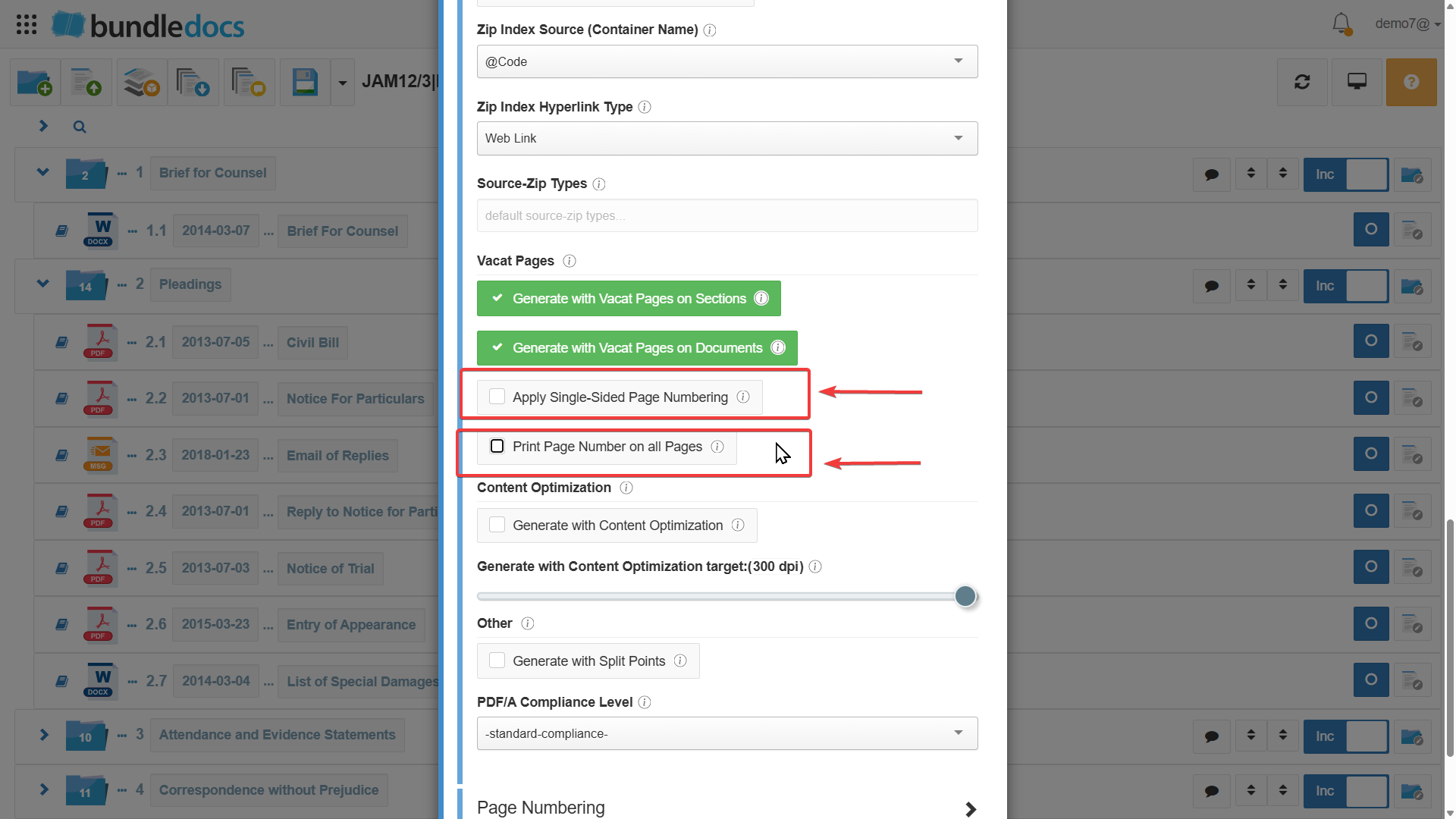
5.Note: You can choose to apply single sided page numbering by selecting the option Apply Single- Sided Page Numbering. You also have the option to have pagination applied to all documents by selecting the option Print Page Number on a Pages.
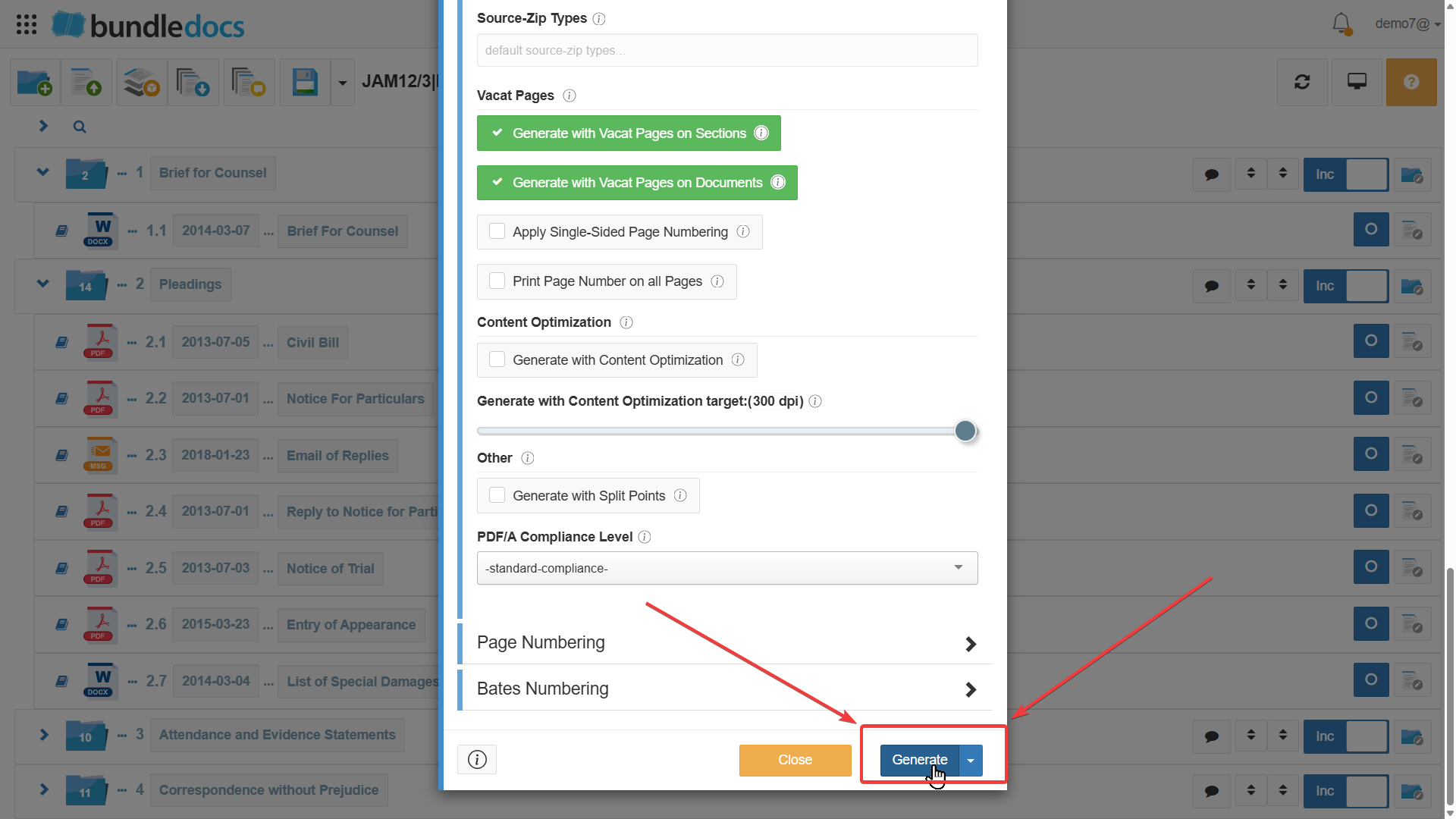
6. Generate your bundle.
7.Vacat Pages will be inserted automatically where needed in the generated version of your bundle.