---
title: Split View Previewer
description: Split View Previewer
---
[Skip to content](https://support.bundledocs.com/knowledge/split-view-previewer#main-content)
[](https://www.bundledocs.com/)
Open main navigation
Close main navigation
How can we help you?
- There are no suggestions because the search field is empty.
1. [Help Centre](https://support.bundledocs.com/knowledge?hsLang=en)
2. [Redact, Annotate & PDF Editing](https://support.bundledocs.com/knowledge/redact-annotate-pdf-editing?hsLang=en)
3. [Document Previewer](https://support.bundledocs.com/knowledge/redact-annotate-pdf-editing?hsLang=en#document-previewer)
# Split View Previewer
## You can use the 'Spilt View' option so you can have the document previewer and workspace open side by side, this is available with any high resolution screen.
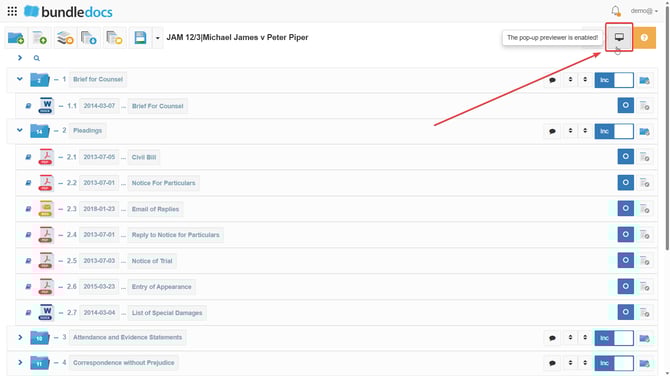
1\. Click the **Split View** icon at the top right of your bundle, next to the yellow question mark icon.
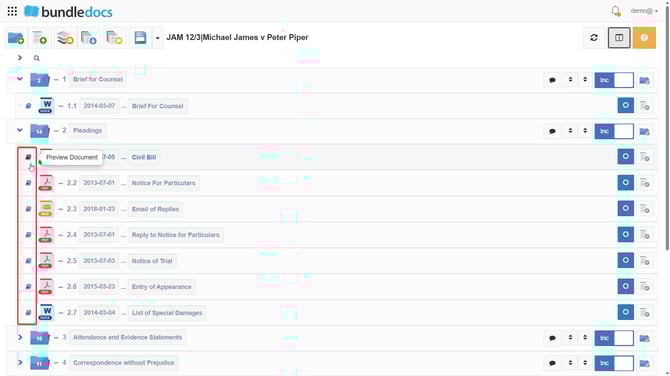
2\. Click **Document Previewer** of any document (blue book icon to the left of each document).
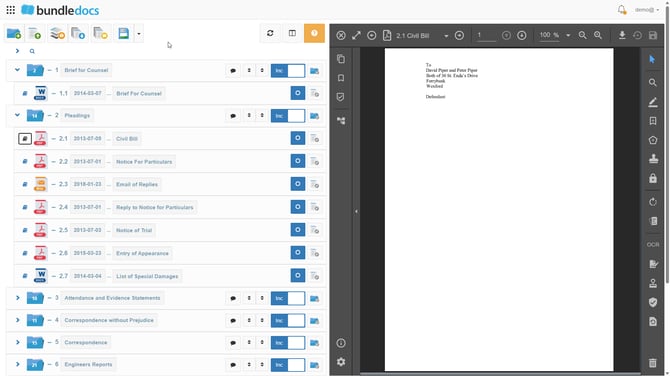
3\. Once you press this, your screen will be halved with your workspace and document previewer side by side.
- [Bundling](https://support.bundledocs.com/knowledge/bundling?hsLang=en#main-content)
- [Workspace, Bundles & Templates](https://support.bundledocs.com/knowledge/bundling?hsLang=en#workspace-bundles-templates)
- [Sections](https://support.bundledocs.com/knowledge/bundling?hsLang=en#sections)
- [Working with Documents](https://support.bundledocs.com/knowledge/bundling?hsLang=en#working-with-documents)
- [Working with Dates](https://support.bundledocs.com/knowledge/bundling?hsLang=en#working-with-dates)
- [Redact, Annotate & PDF Editing](https://support.bundledocs.com/knowledge/redact-annotate-pdf-editing?hsLang=en#main-content)
- [Document Previewer](https://support.bundledocs.com/knowledge/redact-annotate-pdf-editing?hsLang=en#document-previewer)
- [Annotate](https://support.bundledocs.com/knowledge/redact-annotate-pdf-editing?hsLang=en#annotate)
- [PDF Editing](https://support.bundledocs.com/knowledge/redact-annotate-pdf-editing?hsLang=en#pdf-editing)
- [Text Editing](https://support.bundledocs.com/knowledge/redact-annotate-pdf-editing?hsLang=en#text-editing)
- [Generate, Customise & Format Bundles](https://support.bundledocs.com/knowledge/generate-customise-format-bundles?hsLang=en#main-content)
- [Export Formats & Core Bundles](https://support.bundledocs.com/knowledge/generate-customise-format-bundles?hsLang=en#export-formats-core-bundles)
- [Optimise Bundle](https://support.bundledocs.com/knowledge/generate-customise-format-bundles?hsLang=en#optimise-bundle)
- [Index & Custom Index](https://support.bundledocs.com/knowledge/generate-customise-format-bundles?hsLang=en#index-custom-index)
- [Bookmarks](https://support.bundledocs.com/knowledge/generate-customise-format-bundles?hsLang=en#bookmarks)
- [Section Pages](https://support.bundledocs.com/knowledge/generate-customise-format-bundles?hsLang=en#section-pages)
- [Digital Numbering](https://support.bundledocs.com/knowledge/generate-customise-format-bundles?hsLang=en#digital-numbering)
- [Bates Numbering](https://support.bundledocs.com/knowledge/generate-customise-format-bundles?hsLang=en#bates-numbering)
- [Sharing & Collaboration](https://support.bundledocs.com/knowledge/sharing-collaboration?hsLang=en#main-content)
- [Password Protect Bundle](https://support.bundledocs.com/knowledge/sharing-collaboration?hsLang=en#password-protect-bundle)
- [Secure Share](https://support.bundledocs.com/knowledge/sharing-collaboration?hsLang=en#secure-share)
- [Collaboration](https://support.bundledocs.com/knowledge/sharing-collaboration?hsLang=en#collaboration)
- [Integrations & Uploading](https://support.bundledocs.com/knowledge/integrations-uploading?hsLang=en#main-content)
- [Integrations](https://support.bundledocs.com/knowledge/integrations-uploading?hsLang=en#integrations)
- [Advanced Features](https://support.bundledocs.com/knowledge/advanced-features?hsLang=en#main-content)
- [Volumes](https://support.bundledocs.com/knowledge/advanced-features?hsLang=en#volumes)
- [OCR](https://support.bundledocs.com/knowledge/advanced-features?hsLang=en#ocr)
- [Frequently Asked Questions](https://support.bundledocs.com/knowledge/frequently-asked-questions?hsLang=en)
- [Admin & Reporting](https://support.bundledocs.com/knowledge/admin-reporting?hsLang=en#main-content)
- [Manage Users & Groups](https://support.bundledocs.com/knowledge/admin-reporting?hsLang=en#manage-users-groups)
- [Account & Billing](https://support.bundledocs.com/knowledge/account-billing?hsLang=en#main-content)
- [Account Settings](https://support.bundledocs.com/knowledge/account-billing?hsLang=en#account-settings)
- [Billing](https://support.bundledocs.com/knowledge/account-billing?hsLang=en#billing)
© 2025 Bundledocs is a trademark of Meditati Ltd. [Terms of Service](https://www.bundledocs.com/terms-of-service) [Privacy Policy](https://www.bundledocs.com/privacy-policy) [Usage of Cookies](https://www.bundledocs.com/privacy-policy/#EUCookieLegislationCompliance)