---
title: Sharing a Document / Bundle
description: Sharing a Document
---
[Skip to content](https://support.bundledocs.com/knowledge/sharing-a-document#main-content)
[](https://www.bundledocs.com/)
Open main navigation
Close main navigation
How can we help you?
- There are no suggestions because the search field is empty.
1. [Help Centre](https://support.bundledocs.com/knowledge?hsLang=en)
2. [Sharing & Collaboration](https://support.bundledocs.com/knowledge/sharing-collaboration?hsLang=en)
3. [Secure Share](https://support.bundledocs.com/knowledge/sharing-collaboration?hsLang=en#secure-share)
# Sharing a Document / Bundle
## There are two main ways to share your documents / bundles in Bundledocs. You can either add collaborators to allow users to edit and work on the documents, or use Bundledocs’ secure share feature to let recipients download the bundle without editing access.
**[Looking for how to send your bundle via secure share?](https://support.bundledocs.com/knowledge/sharing-a-document#Sharing)**
#### **Adding collaborators to your bundle.**
**NOTE:** Collaborators will only have access to the bundles where you add them, not all your bundles.
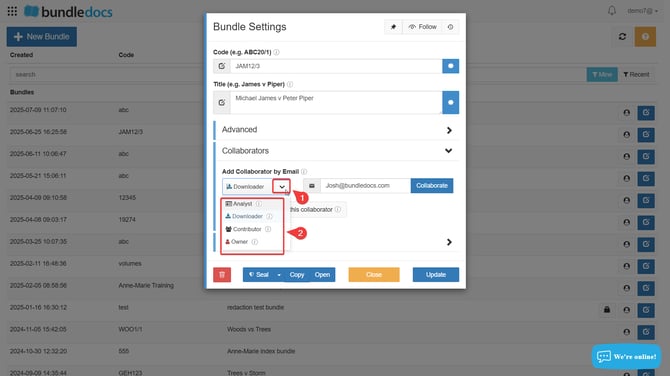
There are 4 different levels of access a collaborator can have: Analyst, Downloader, Contributor and Owner.
**Analyst:** An analyst collaborator can download converted documents, but cannot upload, update, generate, migrate or delete. (this is the level of collaboration with the least amount of amendment access)
**Downloader:** A downloader collaborator can download converted documents and completed bundles, but cannot upload, update, generate, migrate or delete.
**Contributor:** A contributor collaborator can download converted documents and completed bundles, they can also upload, update and generate, but cannot migrate or delete.
**Owner:** An owner collaborator can download converted documents and completed bundles, they can also upload, update and generate, but cannot migrate or delete.
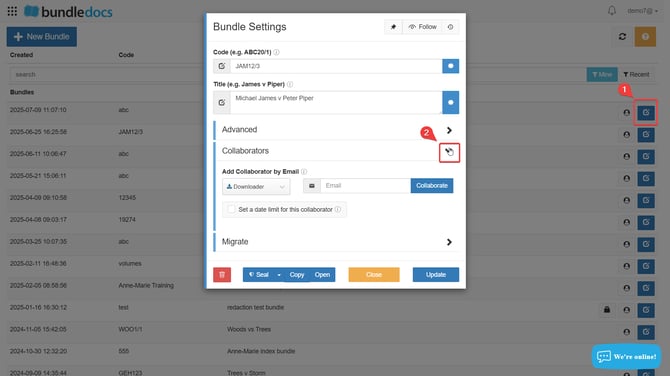
1\. To add a collaborator into your bundle, in your Bundledocs homepage you have to go to **Bundle settings.**
2\. Access the **Collaborators** dropdown.
3\. Select the desired collaboration type from the drop down menu.
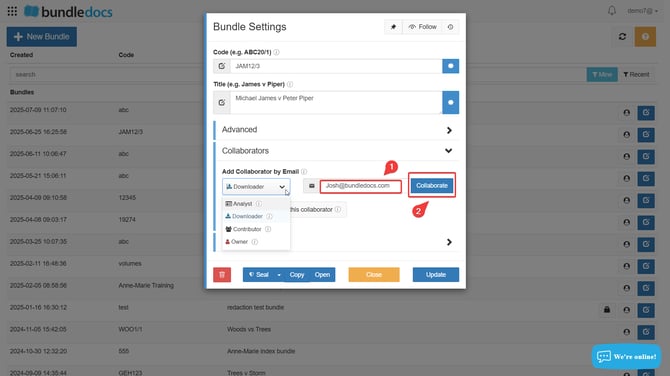
4\. Input in the recipients email address and then click the **Collaborate** button.
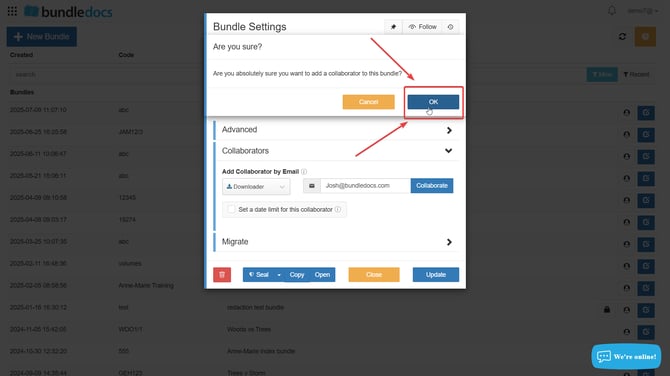
5\. Confirm this action by pressing **OK**.
6.Once the collaborator is added, they will appear like this:
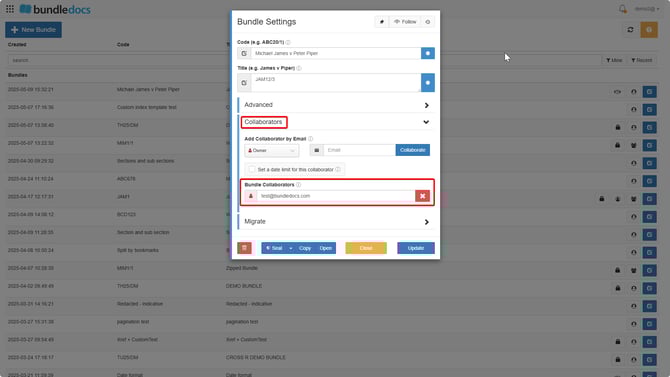
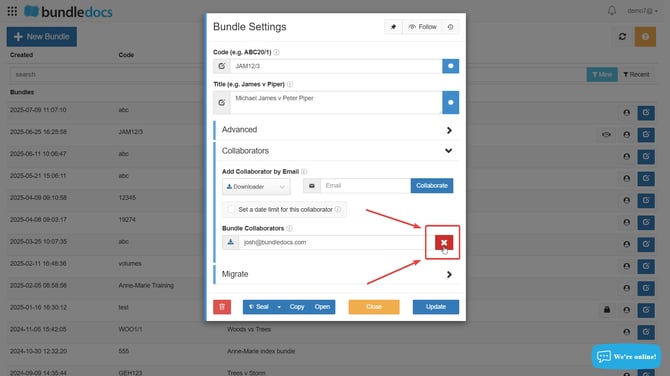
If you want to remove the collaborator, you simply need to click on the red X to the right of the users email address under **Bundle Collaborators**.
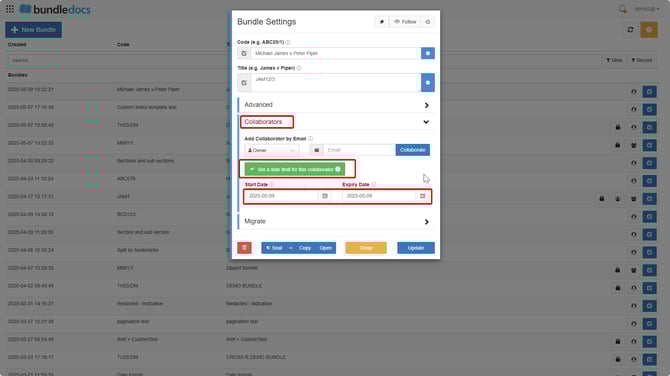
7\. You’re also able to set a specific duration for the collaboration, if you want the person to just have access for a set amount of time. You simply need to tick the **Set a date limit for this collaboration** box in to  **Bundle settings** \> **Collaborators.**
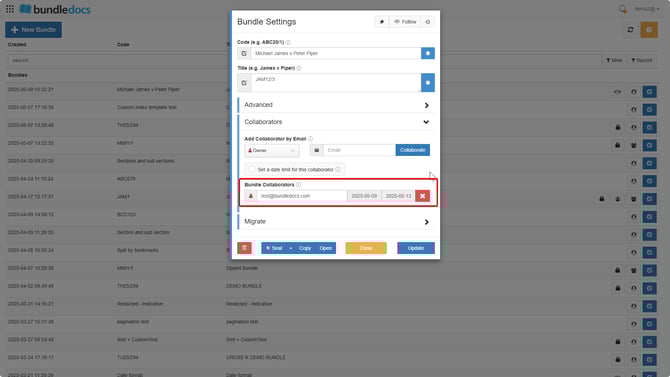
8\. Once you choose the start and expiry date, the collaboration will appear under **Bundle Collaborators** with the set timeframe.
#### **Sharing a bundle using Secure Share**
Once the bundle is shared via secure share the recipient will receive an email where they can simply click a link and the bundle will instantly download to their device.
1\. Go to  **Download and Distribute Bundle** \>  **Forward.**

2\. Please input the intended recipient email address under the **Email** heading.
**Note:** you can add as many recipients as you wish however you will need to add a comma or a semi colon in between the email addresses.
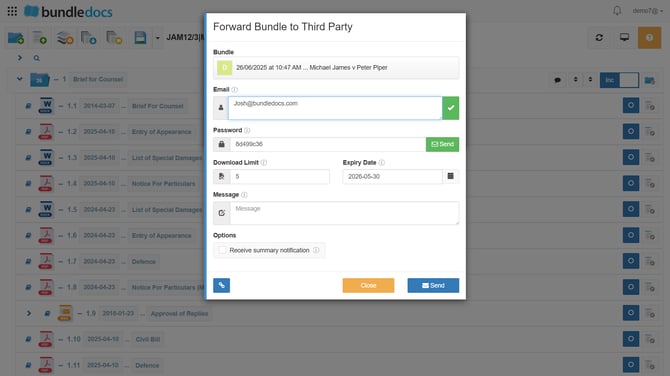
3\. Here you can add a **Password** to secure the bundle share, input a **Download Limit** and **Expiry Date.**
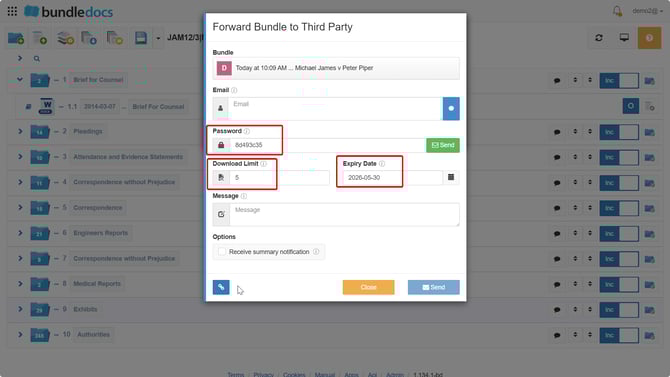
**Password**: Provide a password for the recipient to use when accessing this bundle. Select the lock icon to generate a new password. Alternatively, you can type your own password in the field. Leave this field blank to send a direct download link where no password is required to download the bundle.
**Download limit:** Set the amount of times the recipient can download your bundle.
**NOTE:** The limit has to be set to 1 or higher, if you delete the number and leave the field empty the bundle won't be shared.
**Expiry date:** Set an expiration date for the shared bundle. Once the date is met the shareable link will stop working.
4\. Once you are happy with the password, download limit and expiry date you can then send the bundle by clicking the **Send** icon.
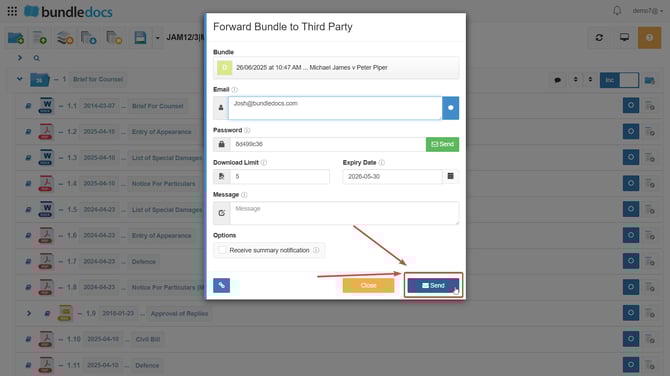
5\. Please confirm the sending action by pressing **OK**.

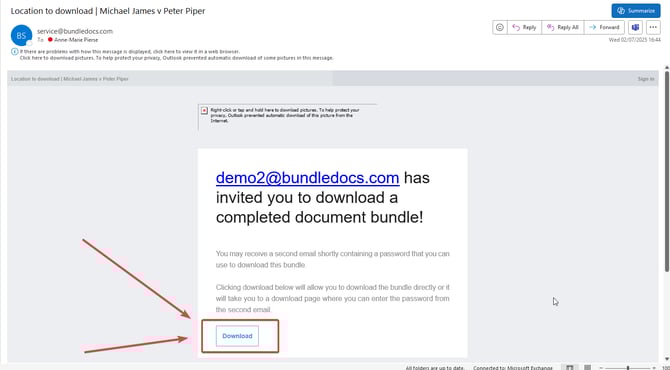
6\. Once you complete the above steps the recipient will receive an email with an option to download the bundle.
- [Bundling](https://support.bundledocs.com/knowledge/bundling?hsLang=en#main-content)
- [Workspace, Bundles & Templates](https://support.bundledocs.com/knowledge/bundling?hsLang=en#workspace-bundles-templates)
- [Sections](https://support.bundledocs.com/knowledge/bundling?hsLang=en#sections)
- [Working with Documents](https://support.bundledocs.com/knowledge/bundling?hsLang=en#working-with-documents)
- [Working with Dates](https://support.bundledocs.com/knowledge/bundling?hsLang=en#working-with-dates)
- [Redact, Annotate & PDF Editing](https://support.bundledocs.com/knowledge/redact-annotate-pdf-editing?hsLang=en#main-content)
- [Document Previewer](https://support.bundledocs.com/knowledge/redact-annotate-pdf-editing?hsLang=en#document-previewer)
- [Annotate](https://support.bundledocs.com/knowledge/redact-annotate-pdf-editing?hsLang=en#annotate)
- [PDF Editing](https://support.bundledocs.com/knowledge/redact-annotate-pdf-editing?hsLang=en#pdf-editing)
- [Text Editing](https://support.bundledocs.com/knowledge/redact-annotate-pdf-editing?hsLang=en#text-editing)
- [Generate, Customise & Format Bundles](https://support.bundledocs.com/knowledge/generate-customise-format-bundles?hsLang=en#main-content)
- [Export Formats & Core Bundles](https://support.bundledocs.com/knowledge/generate-customise-format-bundles?hsLang=en#export-formats-core-bundles)
- [Optimise Bundle](https://support.bundledocs.com/knowledge/generate-customise-format-bundles?hsLang=en#optimise-bundle)
- [Index & Custom Index](https://support.bundledocs.com/knowledge/generate-customise-format-bundles?hsLang=en#index-custom-index)
- [Bookmarks](https://support.bundledocs.com/knowledge/generate-customise-format-bundles?hsLang=en#bookmarks)
- [Section Pages](https://support.bundledocs.com/knowledge/generate-customise-format-bundles?hsLang=en#section-pages)
- [Digital Numbering](https://support.bundledocs.com/knowledge/generate-customise-format-bundles?hsLang=en#digital-numbering)
- [Bates Numbering](https://support.bundledocs.com/knowledge/generate-customise-format-bundles?hsLang=en#bates-numbering)
- [Sharing & Collaboration](https://support.bundledocs.com/knowledge/sharing-collaboration?hsLang=en#main-content)
- [Password Protect Bundle](https://support.bundledocs.com/knowledge/sharing-collaboration?hsLang=en#password-protect-bundle)
- [Secure Share](https://support.bundledocs.com/knowledge/sharing-collaboration?hsLang=en#secure-share)
- [Collaboration](https://support.bundledocs.com/knowledge/sharing-collaboration?hsLang=en#collaboration)
- [Integrations & Uploading](https://support.bundledocs.com/knowledge/integrations-uploading?hsLang=en#main-content)
- [Integrations](https://support.bundledocs.com/knowledge/integrations-uploading?hsLang=en#integrations)
- [Advanced Features](https://support.bundledocs.com/knowledge/advanced-features?hsLang=en#main-content)
- [Volumes](https://support.bundledocs.com/knowledge/advanced-features?hsLang=en#volumes)
- [OCR](https://support.bundledocs.com/knowledge/advanced-features?hsLang=en#ocr)
- [Frequently Asked Questions](https://support.bundledocs.com/knowledge/frequently-asked-questions?hsLang=en)
- [Admin & Reporting](https://support.bundledocs.com/knowledge/admin-reporting?hsLang=en#main-content)
- [Manage Users & Groups](https://support.bundledocs.com/knowledge/admin-reporting?hsLang=en#manage-users-groups)
- [Account & Billing](https://support.bundledocs.com/knowledge/account-billing?hsLang=en#main-content)
- [Account Settings](https://support.bundledocs.com/knowledge/account-billing?hsLang=en#account-settings)
- [Billing](https://support.bundledocs.com/knowledge/account-billing?hsLang=en#billing)
© 2025 Bundledocs is a trademark of Meditati Ltd. [Terms of Service](https://www.bundledocs.com/terms-of-service) [Privacy Policy](https://www.bundledocs.com/privacy-policy) [Usage of Cookies](https://www.bundledocs.com/privacy-policy/#EUCookieLegislationCompliance)