---
title: Previewer Settings
description: Previewer settings
---
[Skip to content](https://support.bundledocs.com/knowledge/previewer-settings#main-content)
[](https://www.bundledocs.com/)
Open main navigation
Close main navigation
How can we help you?
- There are no suggestions because the search field is empty.
1. [Help Centre](https://support.bundledocs.com/knowledge?hsLang=en)
2. [Redact, Annotate & PDF Editing](https://support.bundledocs.com/knowledge/redact-annotate-pdf-editing?hsLang=en)
3. [Document Previewer](https://support.bundledocs.com/knowledge/redact-annotate-pdf-editing?hsLang=en#document-previewer)
# Previewer Settings
## The Previewer Settings allow you to customise your viewing and interaction experience, giving users control over how documents are presented and interacted with.
### [General settings](https://support.bundledocs.com/knowledge/previewer-settings#general-settings)
### [Seal configuration](https://support.bundledocs.com/knowledge/previewer-settings#Seal-configuration)
### [Annotation Defaults](https://support.bundledocs.com/knowledge/previewer-settings#annotation-defaults)
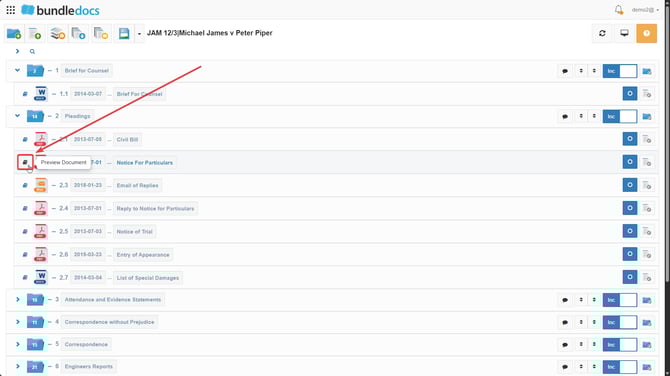
1\. To access the **Previewer Settings** click on the  **Document Previewer** for one of your documents in the bundle.
2\. Here, click on the  **User Settings** icon at the bottom left corner to open these options.

3\. This opens the settings menu where we can apply changes for our  **Document Previewer** and the way we amend our documents in Bundledocs.
### General Settings:
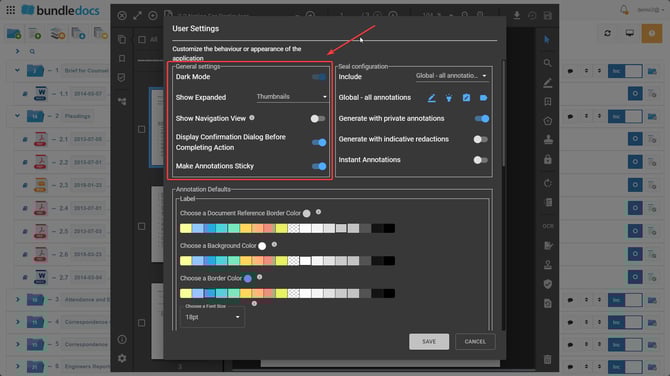
**Dark Mode:** allows you to switch the previewer interface from light to dark colours, reducing eye strain and improving visibility in low-light environments. This setting applies for:
- The background and interface colours of the previewer.
- It does **not** affect the appearance of the actual document or annotations.
- It is a **personal setting**, meaning it applies only to your view and does not impact other users working on the same bundle.
**Show Expanded:** controls how document thumbnails are displayed in the previewer’s on the left hand side. When this setting is enabled, the Thumbnails are expanded to show full page previews of each document. This makes it easier to visually scan and reorder pages within a document.
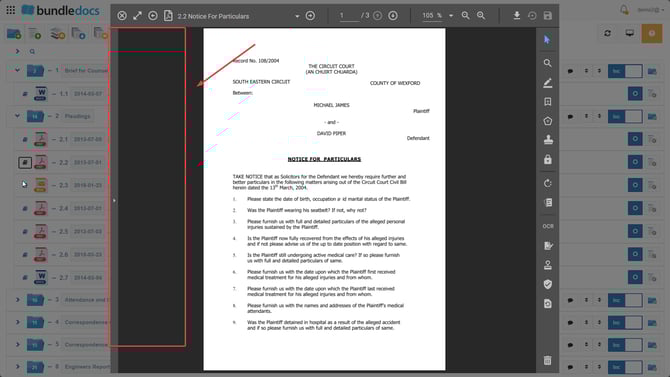
When this is disabled to **None** the document previewer will only display the pages of the document, without including the thumbnails view as soon as you open the previewer. This view is more compact and convenient for users who prefer a minimal interface or are working on smaller screens.

****
**Show Navigation View:** this enables a new tab on the left hand side where you can see all the documents in the bundle listed. This allows for easier navigation between documents in your bundle.

**Display Confirmation Dialog Before Completing Action:** having this setting enabled helps you avoid accidental changes by prompting a confirmation window before certain actions are finalised. You will get a confirmation window before: sealing annotations, deleting pages or documents, splitting documents and applying general amendments to the documents.
**Make Annotations Sticky:** this allows you to streamline the annotation workflow by keeping the chosen annotation tool selected. When this is enabled, the annotation remains active after each use, so you can apply multiple annotations consecutively without the need to reselect the tool.
If this is disabled, the annotation resets after each use, requiring you to reselect it each time you want to apply it again.
### Seal Configuration:
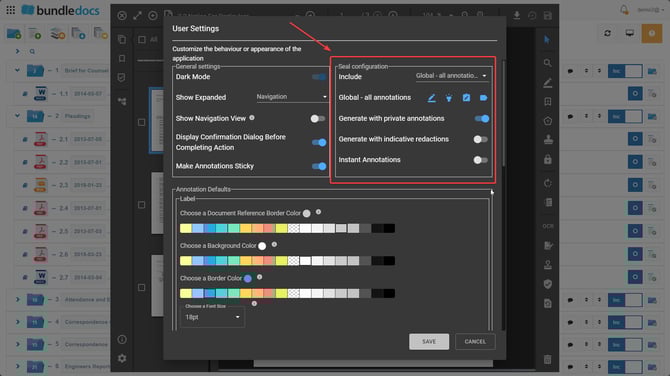
**Include:** this allows you to choose how your annotations are handled when generating the bundle. Selecting Global – All Annotations from the dropdown, will include the annotations of anyone that has worked on the bundle.
**Global - All Annotations:** this setting allows you to choose which annotations you want to include when generating the document. By default, all annotation types are included and will appear in blue.
**Generate with private annotations:** enabling this setting will have private annotations included when generating the bundle.
**Generate with indicative redactions:** this allows you to add redactions without actually removing the text behind them. Instead of burning the redactions, the redacted areas are highlighted but still readable. This is useful in cases where visibility is needed for context.
**Instant Annotations:** when this setting is enabled redactions are automatically set once applied, fully redacting the contents straight away.
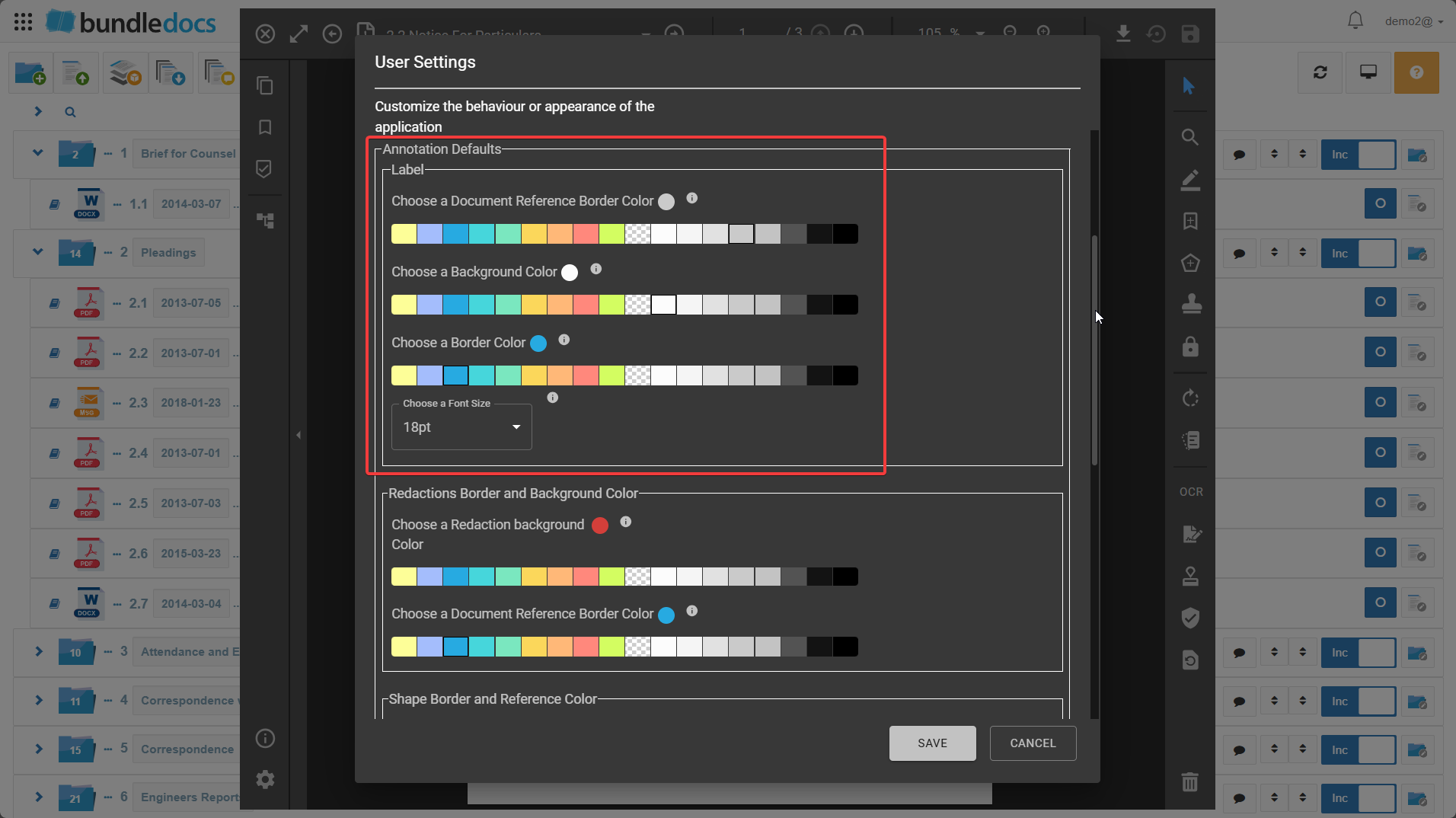
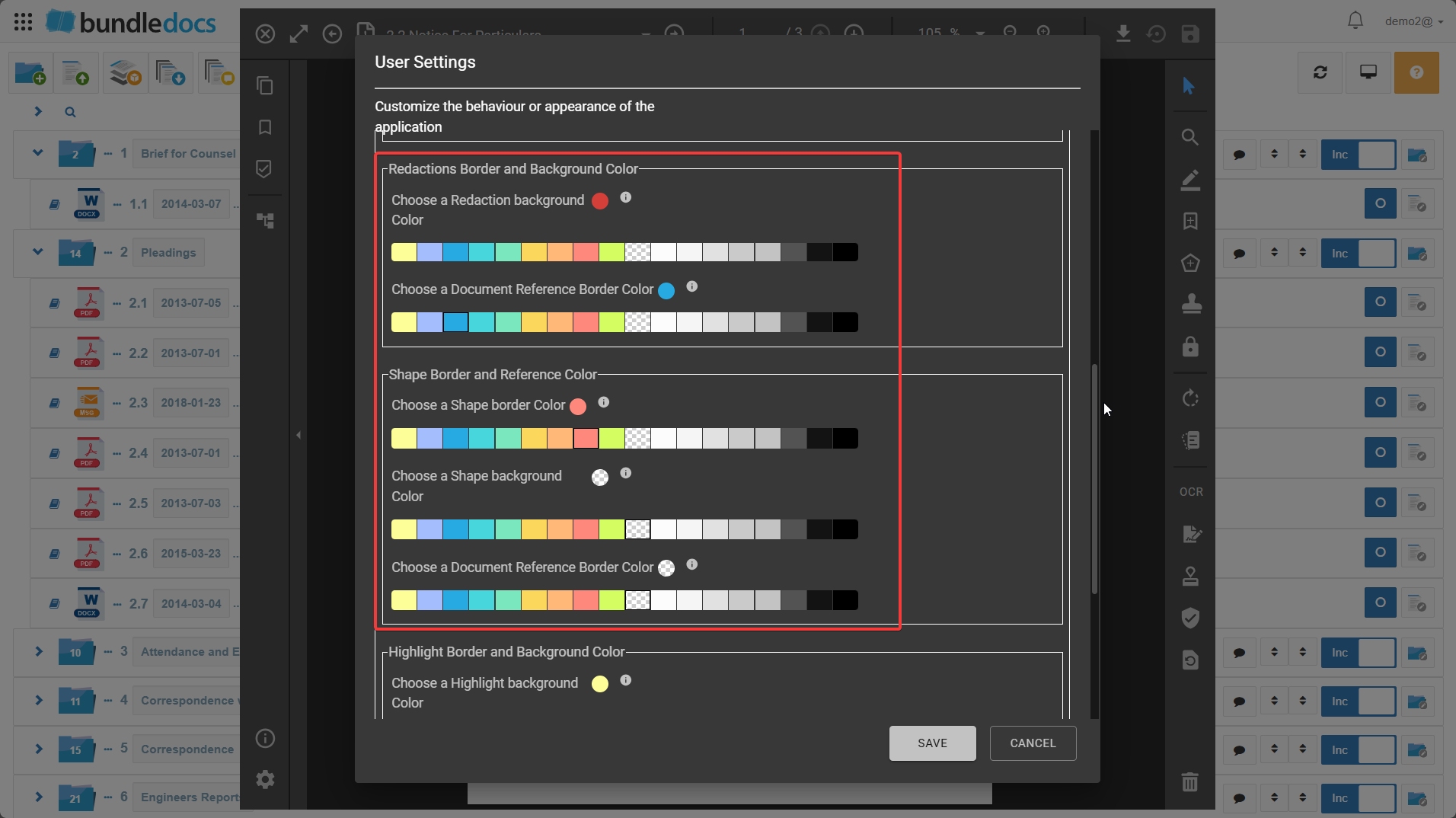
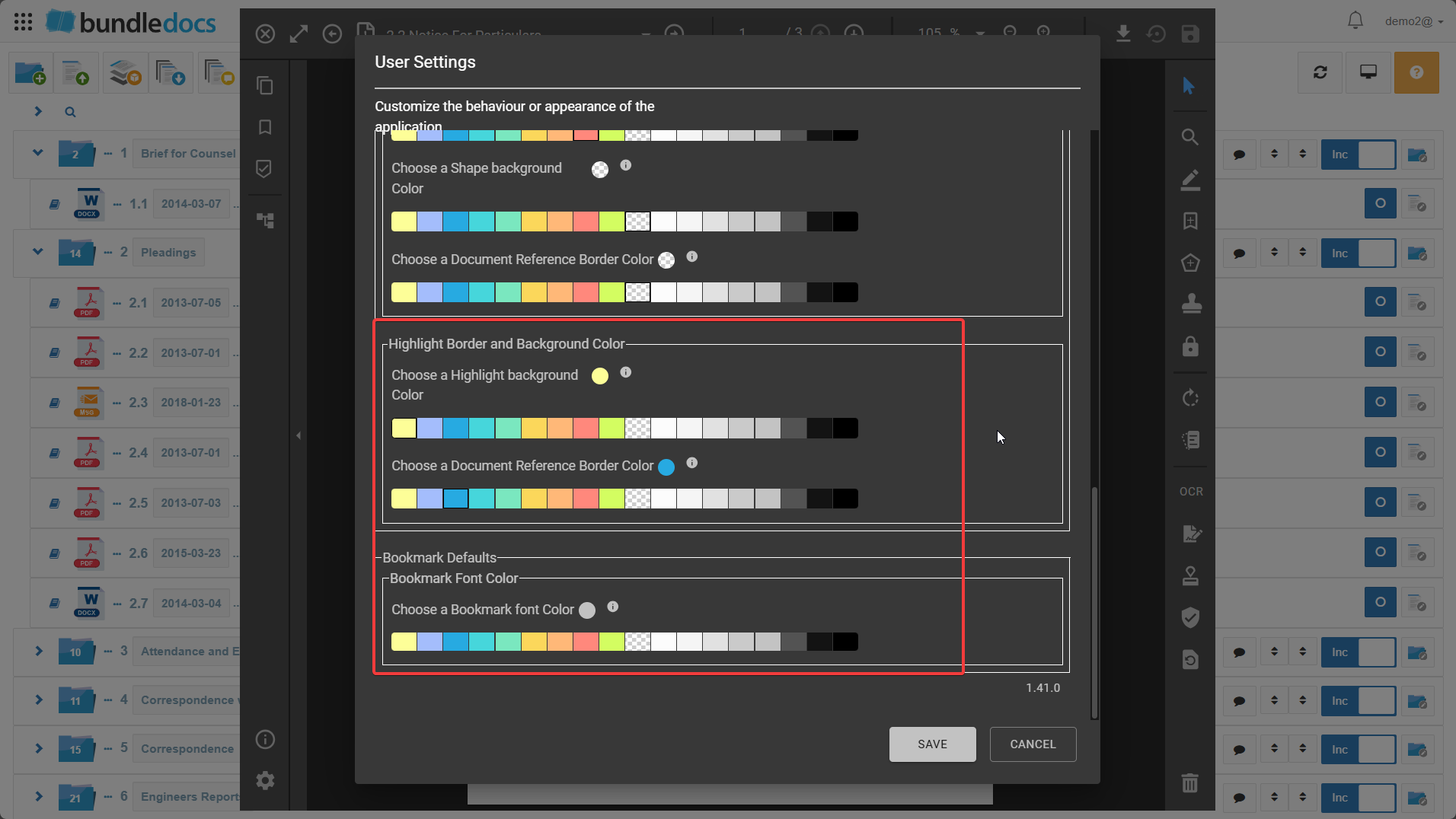
### Annotation defaults:
These settings allow you to set your default colours for your label, redaction and highlight annotations, as well as your bookmark default colours.
- [Bundling](https://support.bundledocs.com/knowledge/bundling?hsLang=en#main-content)
- [Workspace, Bundles & Templates](https://support.bundledocs.com/knowledge/bundling?hsLang=en#workspace-bundles-templates)
- [Sections](https://support.bundledocs.com/knowledge/bundling?hsLang=en#sections)
- [Working with Documents](https://support.bundledocs.com/knowledge/bundling?hsLang=en#working-with-documents)
- [Working with Dates](https://support.bundledocs.com/knowledge/bundling?hsLang=en#working-with-dates)
- [Redact, Annotate & PDF Editing](https://support.bundledocs.com/knowledge/redact-annotate-pdf-editing?hsLang=en#main-content)
- [Document Previewer](https://support.bundledocs.com/knowledge/redact-annotate-pdf-editing?hsLang=en#document-previewer)
- [Annotate](https://support.bundledocs.com/knowledge/redact-annotate-pdf-editing?hsLang=en#annotate)
- [PDF Editing](https://support.bundledocs.com/knowledge/redact-annotate-pdf-editing?hsLang=en#pdf-editing)
- [Text Editing](https://support.bundledocs.com/knowledge/redact-annotate-pdf-editing?hsLang=en#text-editing)
- [Generate, Customise & Format Bundles](https://support.bundledocs.com/knowledge/generate-customise-format-bundles?hsLang=en#main-content)
- [Export Formats & Core Bundles](https://support.bundledocs.com/knowledge/generate-customise-format-bundles?hsLang=en#export-formats-core-bundles)
- [Optimise Bundle](https://support.bundledocs.com/knowledge/generate-customise-format-bundles?hsLang=en#optimise-bundle)
- [Index & Custom Index](https://support.bundledocs.com/knowledge/generate-customise-format-bundles?hsLang=en#index-custom-index)
- [Bookmarks](https://support.bundledocs.com/knowledge/generate-customise-format-bundles?hsLang=en#bookmarks)
- [Section Pages](https://support.bundledocs.com/knowledge/generate-customise-format-bundles?hsLang=en#section-pages)
- [Digital Numbering](https://support.bundledocs.com/knowledge/generate-customise-format-bundles?hsLang=en#digital-numbering)
- [Bates Numbering](https://support.bundledocs.com/knowledge/generate-customise-format-bundles?hsLang=en#bates-numbering)
- [Sharing & Collaboration](https://support.bundledocs.com/knowledge/sharing-collaboration?hsLang=en#main-content)
- [Password Protect Bundle](https://support.bundledocs.com/knowledge/sharing-collaboration?hsLang=en#password-protect-bundle)
- [Secure Share](https://support.bundledocs.com/knowledge/sharing-collaboration?hsLang=en#secure-share)
- [Collaboration](https://support.bundledocs.com/knowledge/sharing-collaboration?hsLang=en#collaboration)
- [Integrations & Uploading](https://support.bundledocs.com/knowledge/integrations-uploading?hsLang=en#main-content)
- [Integrations](https://support.bundledocs.com/knowledge/integrations-uploading?hsLang=en#integrations)
- [Advanced Features](https://support.bundledocs.com/knowledge/advanced-features?hsLang=en#main-content)
- [Volumes](https://support.bundledocs.com/knowledge/advanced-features?hsLang=en#volumes)
- [OCR](https://support.bundledocs.com/knowledge/advanced-features?hsLang=en#ocr)
- [Frequently Asked Questions](https://support.bundledocs.com/knowledge/frequently-asked-questions?hsLang=en)
- [Admin & Reporting](https://support.bundledocs.com/knowledge/admin-reporting?hsLang=en#main-content)
- [Manage Users & Groups](https://support.bundledocs.com/knowledge/admin-reporting?hsLang=en#manage-users-groups)
- [Account & Billing](https://support.bundledocs.com/knowledge/account-billing?hsLang=en#main-content)
- [Account Settings](https://support.bundledocs.com/knowledge/account-billing?hsLang=en#account-settings)
- [Billing](https://support.bundledocs.com/knowledge/account-billing?hsLang=en#billing)
© 2025 Bundledocs is a trademark of Meditati Ltd. [Terms of Service](https://www.bundledocs.com/terms-of-service) [Privacy Policy](https://www.bundledocs.com/privacy-policy) [Usage of Cookies](https://www.bundledocs.com/privacy-policy/#EUCookieLegislationCompliance)