
Follow these steps after selecting the documents that you would like in your core bundle. Want to know how to select core bundle documents? Click here!
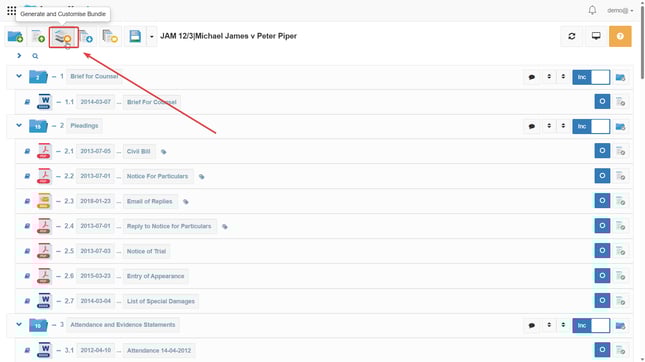
1. Go to  Generate and Customise Bundle, which is the 3rd orange icon located at the top of your bundle.
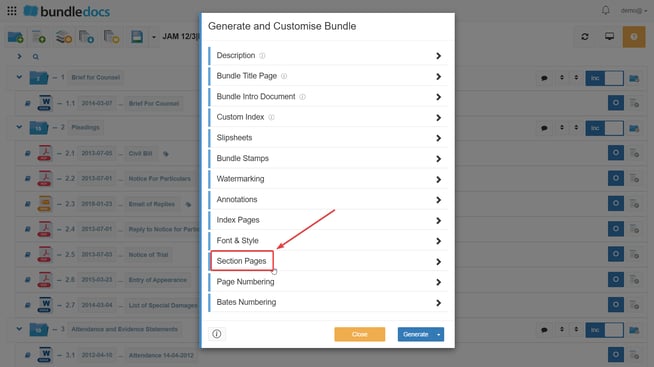
2. Click Section Pages.
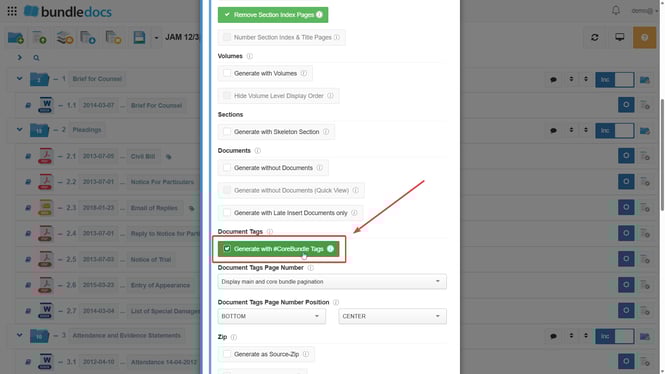
3. Tick Generate with #CoreBundle Tags.
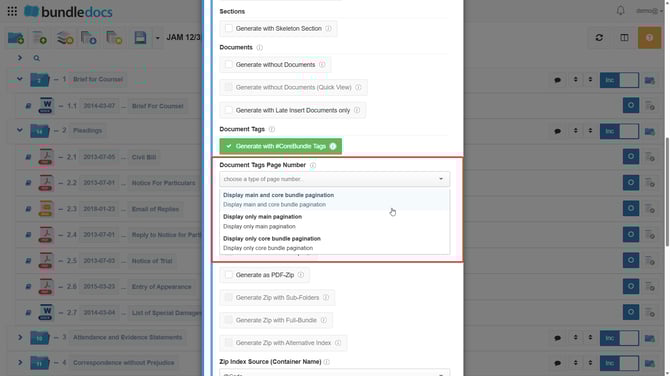
4. Click the dropdown under Document Tags Page Number, where you can choose whether your pagination displays as both main and core pagination together, main pagination only or core pagination only.
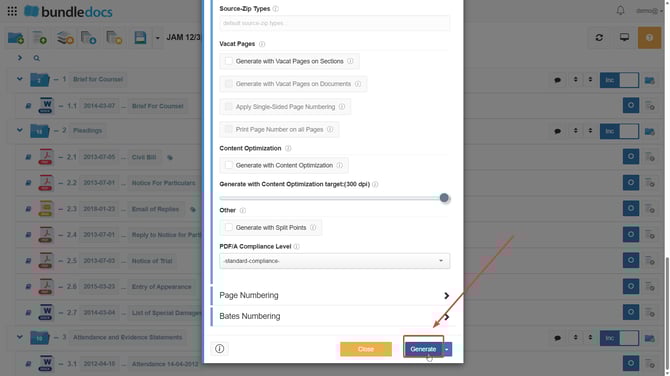
5. Click Generate.
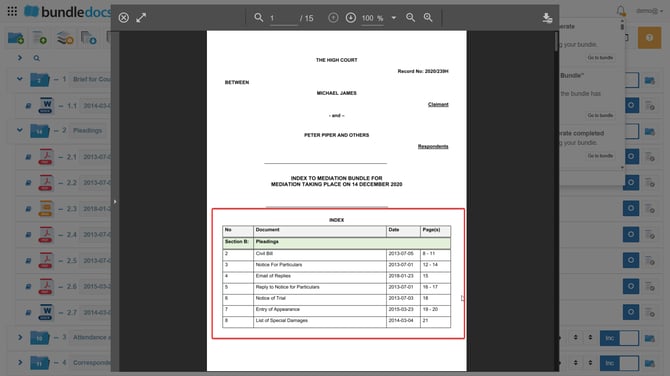
Selecting Display Only Main Pagination will appear like so when generated:
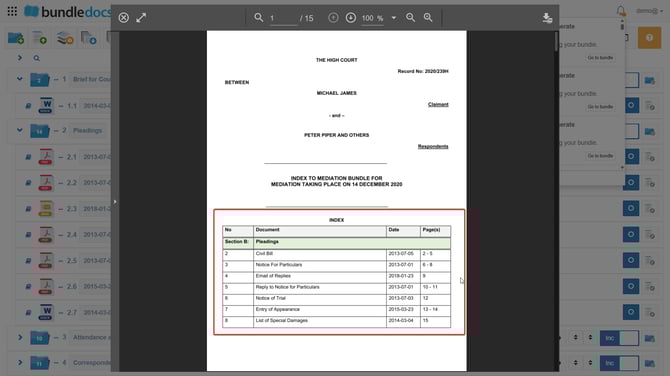
Selecting Display Only Core Bundle Pagination will generate like the below:
TOP TIP: If you are using a custom index, the @Page code needs to be changed to @PageCoreBundle for core bundle pagination to pull through. Want to know how to use a core bundle index? Click here!
Selecting Display Main and Core Bundle Pagination will generate as follows:

After generation, your bundle will generate your core bundle with the pagination you have chosen successfully.