---
title: Bates Stamping
description: Bates Stamping
---
[Skip to content](https://support.bundledocs.com/knowledge/bates-stamping-#main-content)
[](https://www.bundledocs.com/)
Open main navigation
Close main navigation
How can we help you?
- There are no suggestions because the search field is empty.
1. [Help Centre](https://support.bundledocs.com/knowledge?hsLang=en)
2. [Generate, Customise & Format Bundles](https://support.bundledocs.com/knowledge/generate-customise-format-bundles?hsLang=en)
3. [Bates Numbering](https://support.bundledocs.com/knowledge/generate-customise-format-bundles?hsLang=en#bates-numbering)
# Bates Stamping
## Use Bates Stamp to stamp each page of a document with a unique number. This is useful as it allows both sides of a case to refer to a page with a common reference.
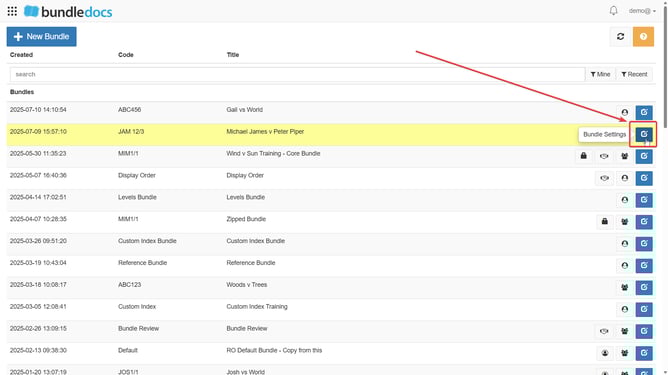
1\. Go to  **Bundle Settings** which is the blue icon to very right of bundle when you are in the Bundledocs homepage.
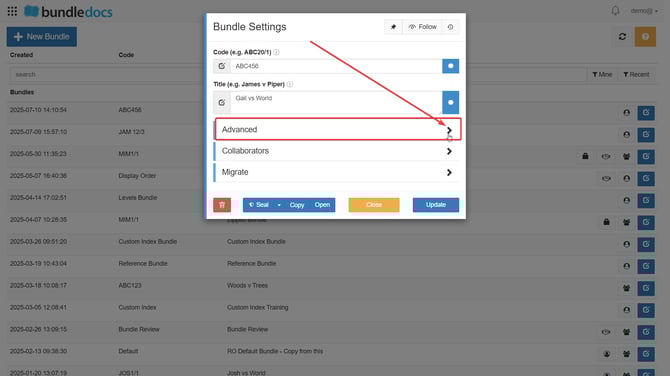
2\. After clicking  **Bundle Settings**, click on **Advanced** tab to expand it.
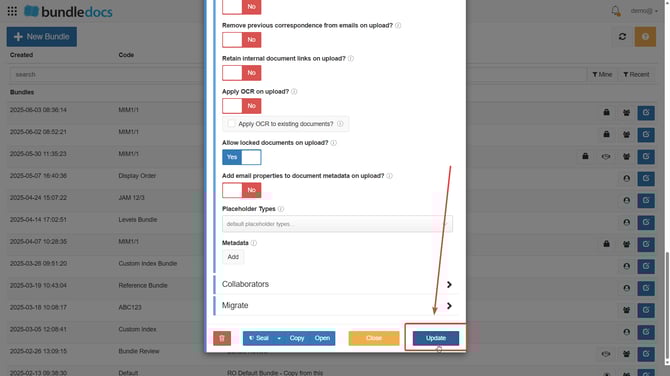
3\. Scroll down and toggle **Show Bates Stamp on screen** to yes.

4\. Click **Update.**
****
#### This Bates stamping can be applied at the Section or Document level.
**-[Section Level:](https://support.bundledocs.com/knowledge/bates-stamping-#bates-stamp-section-level)** This rule will apply for all documents added to the section.
**[-Document Level:](https://support.bundledocs.com/knowledge/bates-stamping-#bates-stamp-document-level)**This will only apply to the document selected.
**TO APPLY BATES STAMP ON A SECTION LEVEL:**
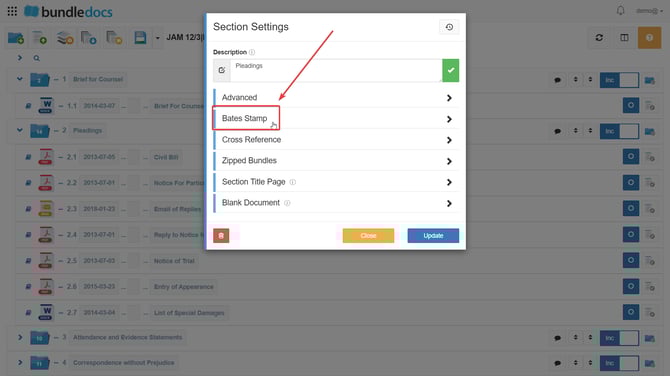
Click **Section Settings,** which is the blue icon to the very right of each section in your bundle.
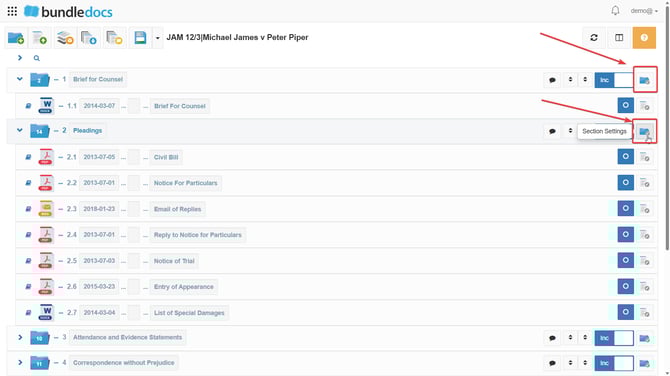
Select **Bates Stamp.**
****
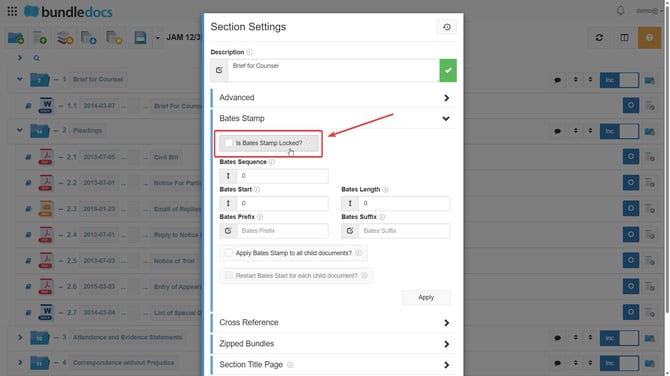
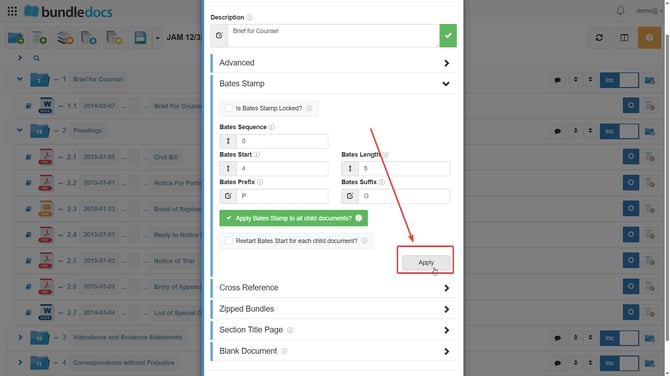
Tick **Is Bates Stamp Locked?** if you would like to ensure the bates stamp rules applied here cannot be changed by a later process.
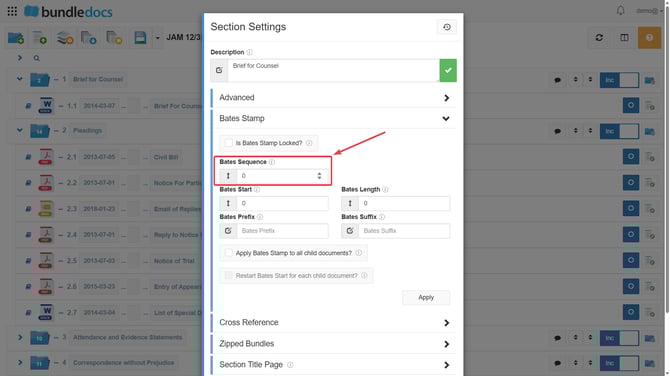
Set the **Bates Sequence** as your desired starting sequence number.
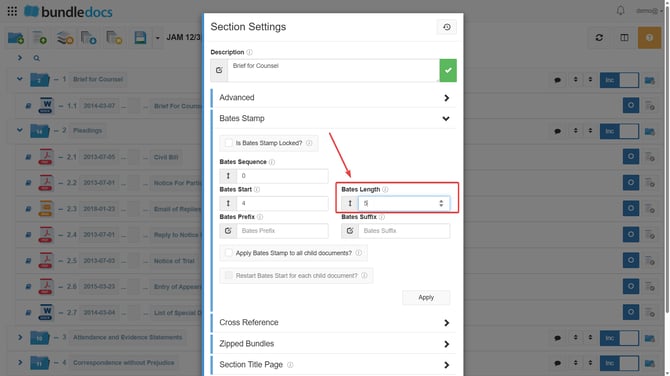
Enter your desired **Bates Start** page number**.** Bates Start is your chosen starting page number of your bundle. In this example, 4 will be the starting page number.

Enter your desired **Bates Length**. Bates Length is the minimum number of characters you desire, e.g if you enter "5", then each page number will display five characters, i.e 00004,00005,00006 etc.
Enter your chosen **Bates Prefix**. Bates Prefix is the text which will appear before the page number. In this example, P will be the Bates Prefix.
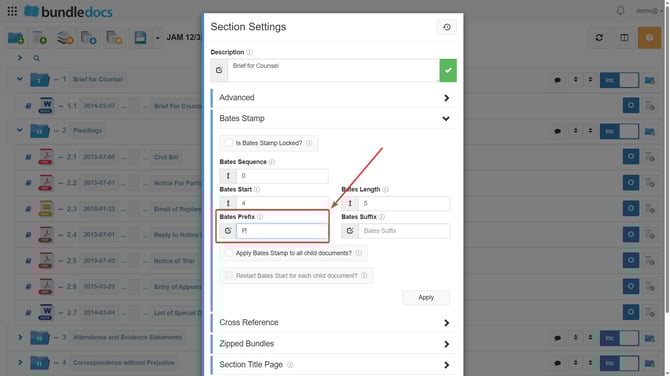
Enter your chosen **Bates Suffix**. Bates Suffix is the text which will appear after the page number. In this example, G will be the Bates Suffix.
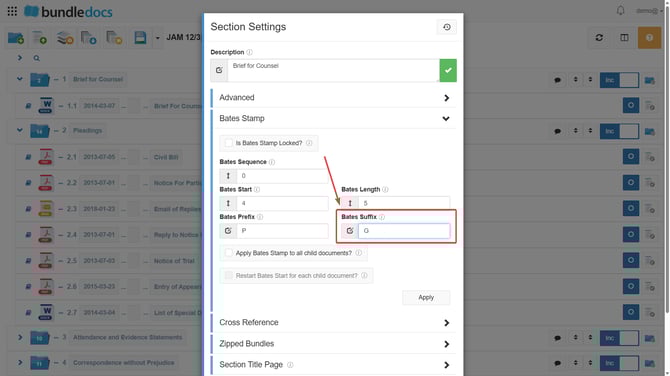
Tick **Apply Bates Stamp to all child documents,** if you would like all descendants (which are not already locked) to have a bates stamp applied.
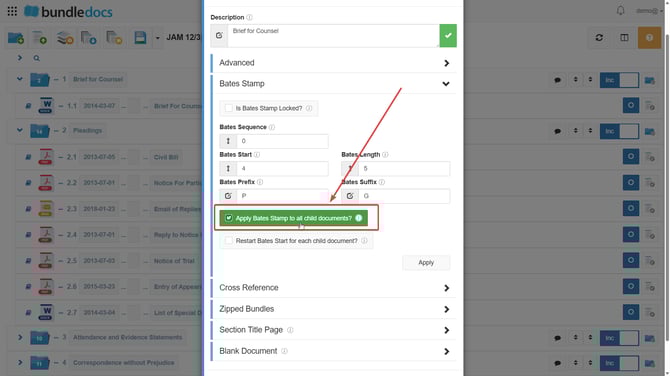
Tick **Restart Bates Start for each child document,** if you would like to ensure bates start resets for each child document.
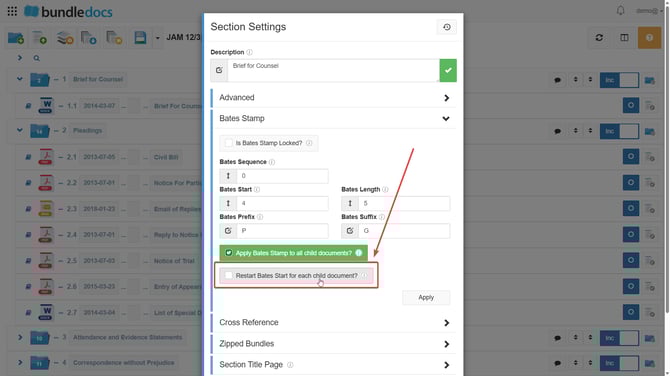
Click **Apply.**
****
**TO APPLY BATES STAMP ON A DOCUMENT LEVEL:**
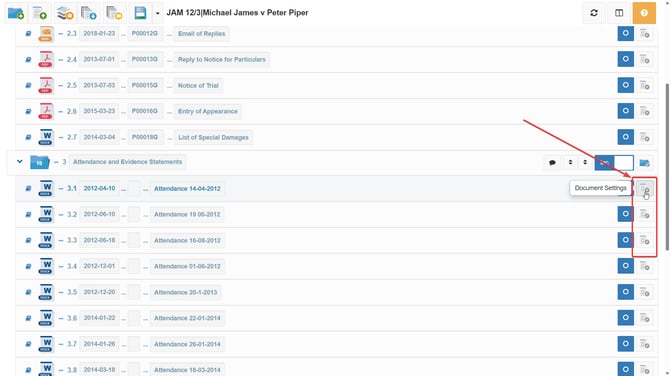
Click**Document Settings,** which is the grey icon to the very right of each document in your bundle.
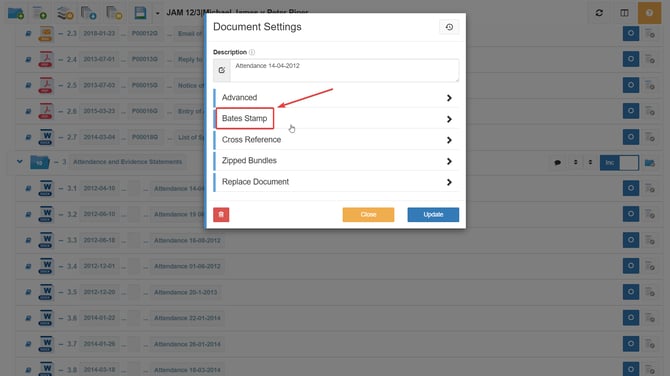
Select **Bates Stamp.**
****
Tick **Is Bates Stamp Locked?** if you would like to ensure the bates stamp rules applied here cannot be changed by a later process.
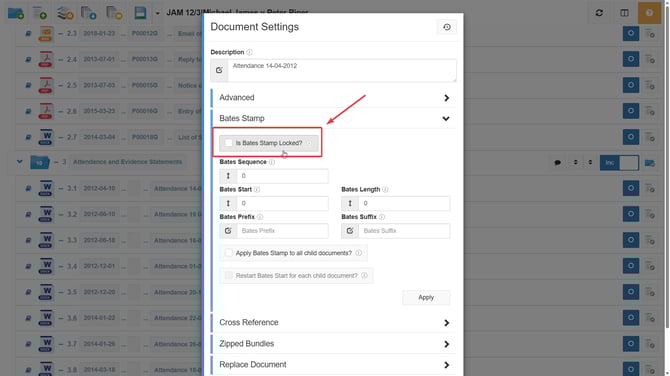
Set the **Bates Sequence** as your desired starting sequence number.
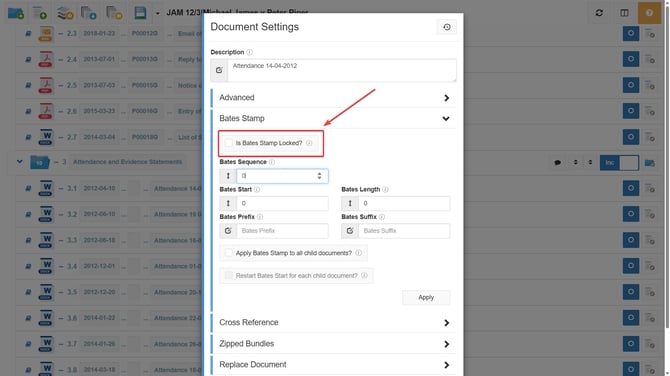
Enter your desired **Bates Start** page number**.** Bates Start is your chosen starting page number of your bundle. In this example, 20 will be the starting page number.
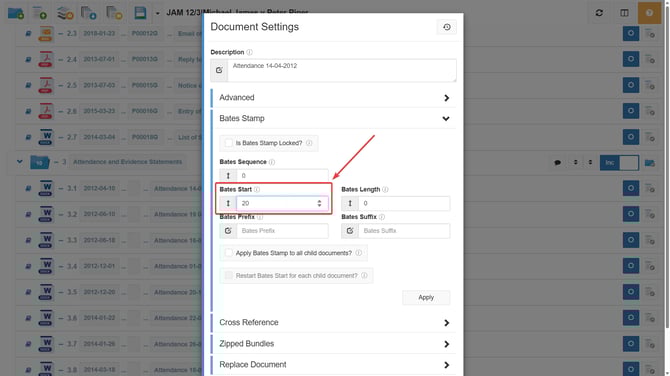
Enter your desired **Bates Length**. Bates Length is the minimum number of characters you desire, e.g if you enter "5", then each page number will display five characters, i.e 00004,00005,00006 etc.
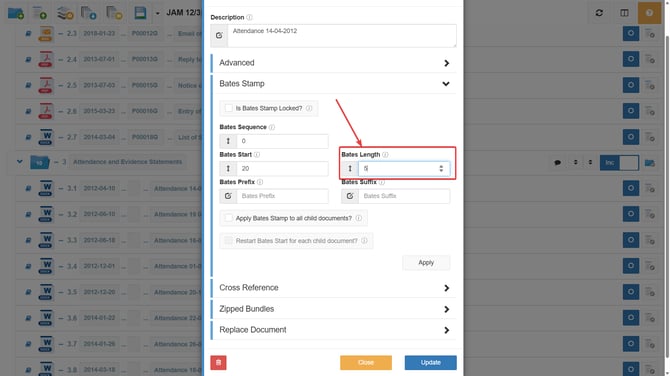
Enter your chosen **Bates Prefix**. Bates Prefix is the text which will appear before the page number. In this example, Q will be the Bates Prefix.
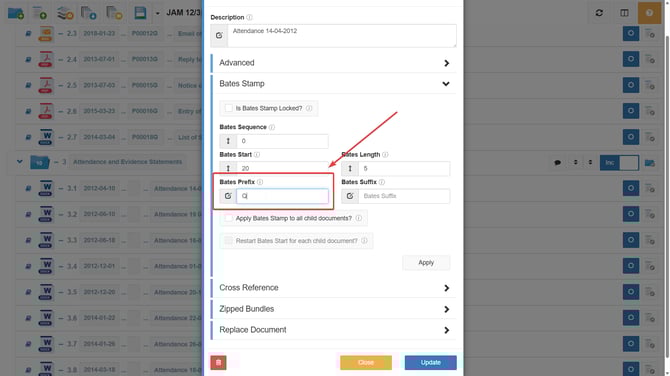
Enter your chosen **Bates Suffix**. Bates Suffix is the text which will appear after the page number. In this example, Z will be the Bates Suffix.
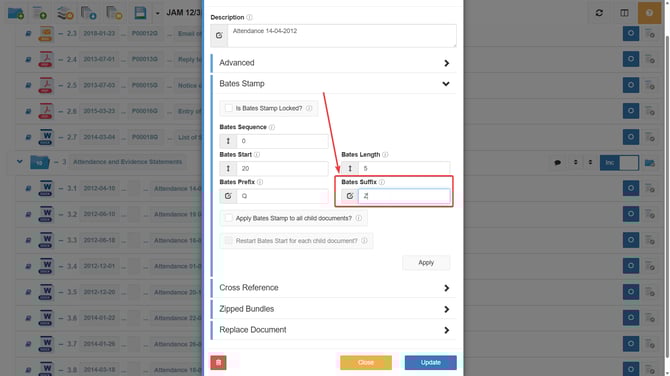
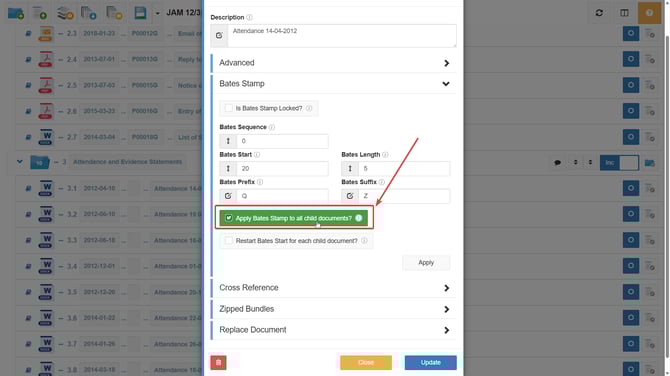
Tick **Apply Bates Stamp to all child documents,** if you would like all descendants (which are not already locked) to have a bates stamp applied.
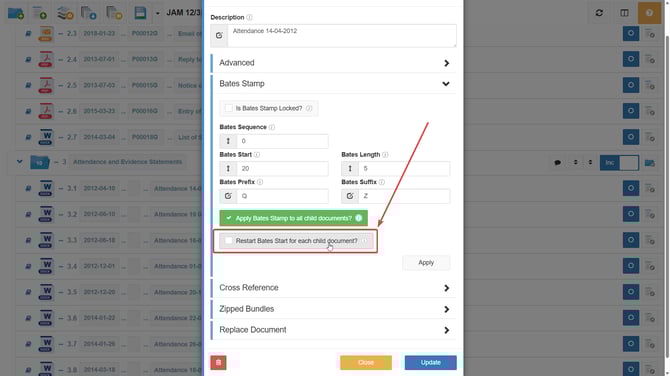
Tick **Restart Bates Start for each child document,** if you would like to ensure bates start resets for each child document.
Click **Apply.**

5\. Go to  **Generate and Customise Bundle**, which is the 3rd orange icon located at the top of your bundle.
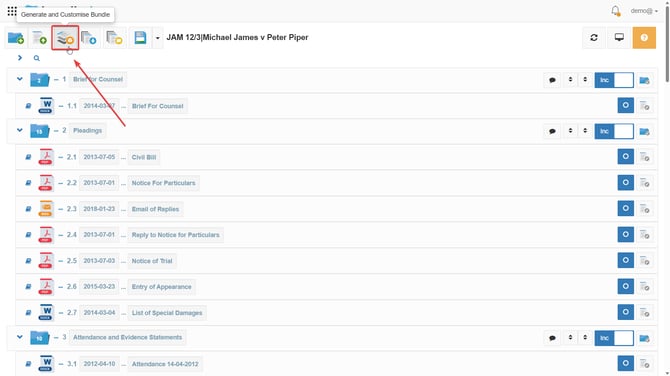
6\. Click **Bates Numbering.**
****
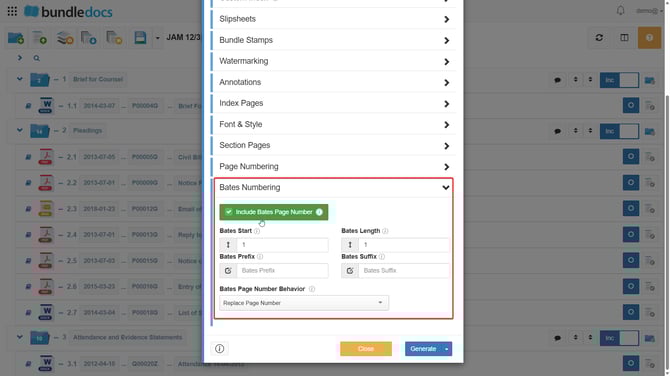
7\. Tick **Include Bates Page Number.**
**Note: Bates Start** and **Bates Length** can both be set to 1 here, while **Bates Prefix** and **Bates Suffix** can be left blank.
****
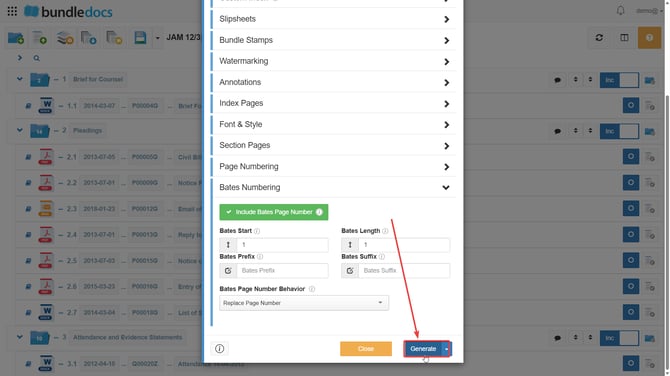
8\. Click **Generate.**
****
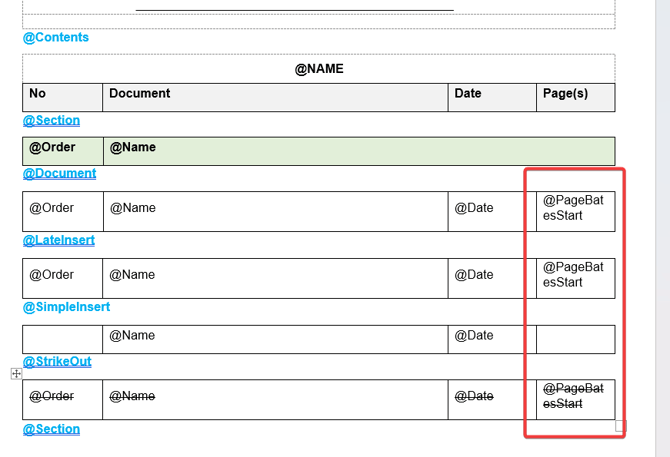
**TOP TIP:** If you are using a custom index, the @Page code needs to be changed to @PageBatesStart for bates numbering to pull through.
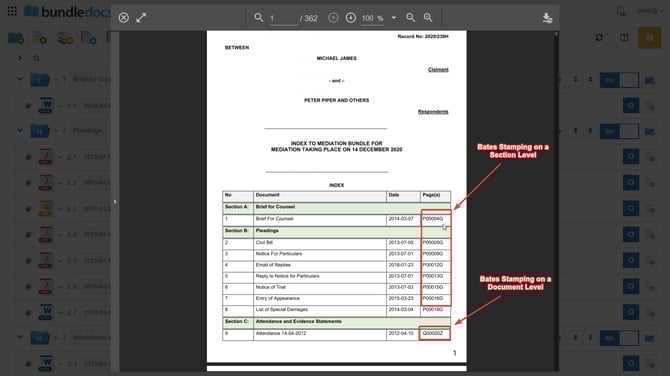
Once generated, your chosen bates stamping will pull through. See in this screenshot both bates stamping applied on a section and document level have successfully generated.
- [Bundling](https://support.bundledocs.com/knowledge/bundling?hsLang=en#main-content)
- [Workspace, Bundles & Templates](https://support.bundledocs.com/knowledge/bundling?hsLang=en#workspace-bundles-templates)
- [Sections](https://support.bundledocs.com/knowledge/bundling?hsLang=en#sections)
- [Working with Documents](https://support.bundledocs.com/knowledge/bundling?hsLang=en#working-with-documents)
- [Working with Dates](https://support.bundledocs.com/knowledge/bundling?hsLang=en#working-with-dates)
- [Redact, Annotate & PDF Editing](https://support.bundledocs.com/knowledge/redact-annotate-pdf-editing?hsLang=en#main-content)
- [Document Previewer](https://support.bundledocs.com/knowledge/redact-annotate-pdf-editing?hsLang=en#document-previewer)
- [Annotate](https://support.bundledocs.com/knowledge/redact-annotate-pdf-editing?hsLang=en#annotate)
- [PDF Editing](https://support.bundledocs.com/knowledge/redact-annotate-pdf-editing?hsLang=en#pdf-editing)
- [Text Editing](https://support.bundledocs.com/knowledge/redact-annotate-pdf-editing?hsLang=en#text-editing)
- [Generate, Customise & Format Bundles](https://support.bundledocs.com/knowledge/generate-customise-format-bundles?hsLang=en#main-content)
- [Export Formats & Core Bundles](https://support.bundledocs.com/knowledge/generate-customise-format-bundles?hsLang=en#export-formats-core-bundles)
- [Optimise Bundle](https://support.bundledocs.com/knowledge/generate-customise-format-bundles?hsLang=en#optimise-bundle)
- [Index & Custom Index](https://support.bundledocs.com/knowledge/generate-customise-format-bundles?hsLang=en#index-custom-index)
- [Bookmarks](https://support.bundledocs.com/knowledge/generate-customise-format-bundles?hsLang=en#bookmarks)
- [Section Pages](https://support.bundledocs.com/knowledge/generate-customise-format-bundles?hsLang=en#section-pages)
- [Digital Numbering](https://support.bundledocs.com/knowledge/generate-customise-format-bundles?hsLang=en#digital-numbering)
- [Bates Numbering](https://support.bundledocs.com/knowledge/generate-customise-format-bundles?hsLang=en#bates-numbering)
- [Sharing & Collaboration](https://support.bundledocs.com/knowledge/sharing-collaboration?hsLang=en#main-content)
- [Password Protect Bundle](https://support.bundledocs.com/knowledge/sharing-collaboration?hsLang=en#password-protect-bundle)
- [Secure Share](https://support.bundledocs.com/knowledge/sharing-collaboration?hsLang=en#secure-share)
- [Collaboration](https://support.bundledocs.com/knowledge/sharing-collaboration?hsLang=en#collaboration)
- [Integrations & Uploading](https://support.bundledocs.com/knowledge/integrations-uploading?hsLang=en#main-content)
- [Integrations](https://support.bundledocs.com/knowledge/integrations-uploading?hsLang=en#integrations)
- [Advanced Features](https://support.bundledocs.com/knowledge/advanced-features?hsLang=en#main-content)
- [Volumes](https://support.bundledocs.com/knowledge/advanced-features?hsLang=en#volumes)
- [OCR](https://support.bundledocs.com/knowledge/advanced-features?hsLang=en#ocr)
- [Frequently Asked Questions](https://support.bundledocs.com/knowledge/frequently-asked-questions?hsLang=en)
- [Admin & Reporting](https://support.bundledocs.com/knowledge/admin-reporting?hsLang=en#main-content)
- [Manage Users & Groups](https://support.bundledocs.com/knowledge/admin-reporting?hsLang=en#manage-users-groups)
- [Account & Billing](https://support.bundledocs.com/knowledge/account-billing?hsLang=en#main-content)
- [Account Settings](https://support.bundledocs.com/knowledge/account-billing?hsLang=en#account-settings)
- [Billing](https://support.bundledocs.com/knowledge/account-billing?hsLang=en#billing)
© 2025 Bundledocs is a trademark of Meditati Ltd. [Terms of Service](https://www.bundledocs.com/terms-of-service) [Privacy Policy](https://www.bundledocs.com/privacy-policy) [Usage of Cookies](https://www.bundledocs.com/privacy-policy/#EUCookieLegislationCompliance)