
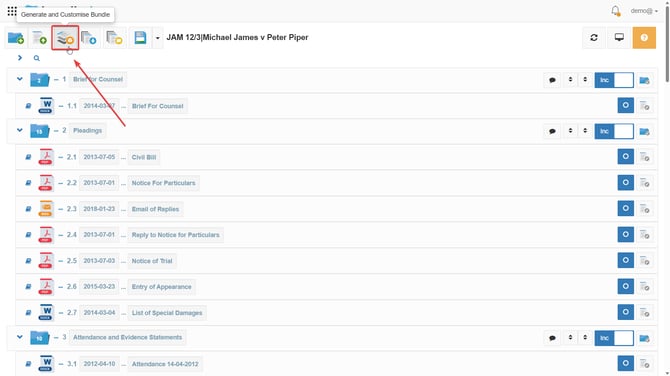
1. Go to  Generate and Customise Bundle, which is the 3rd orange icon located at the top of your bundle.
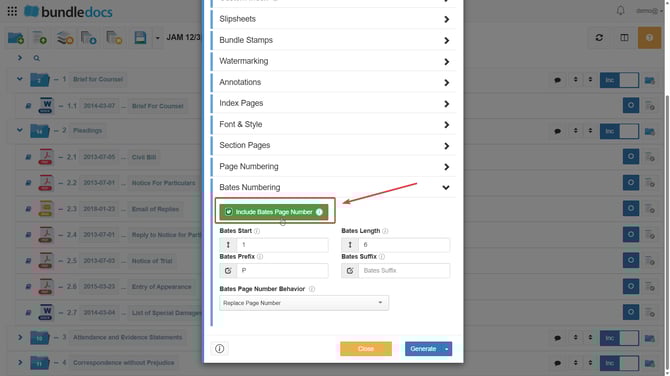
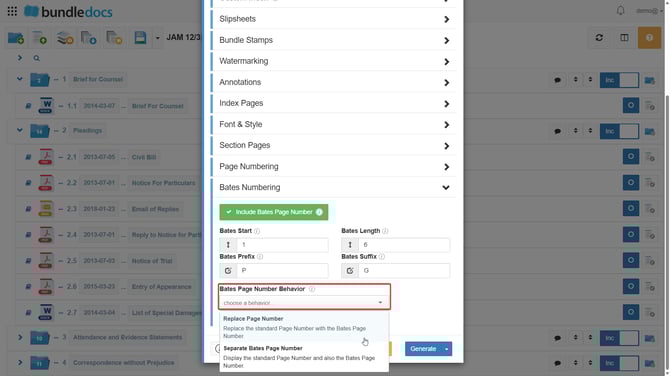
2. Click Bates Numbering.

3. Tick Include Bates Page Number.
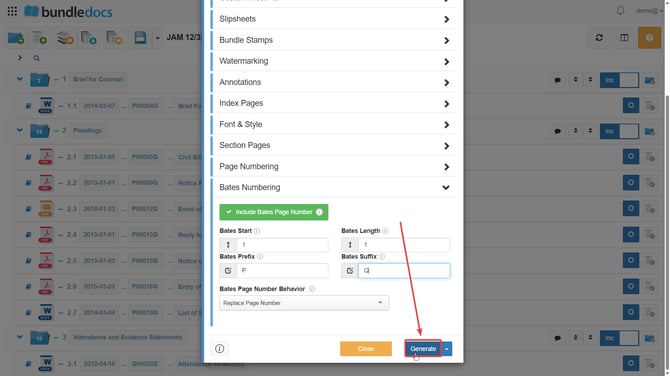
4. Enter your desired Bates Start page number. Bates Start is your chosen starting page number of your bundle.
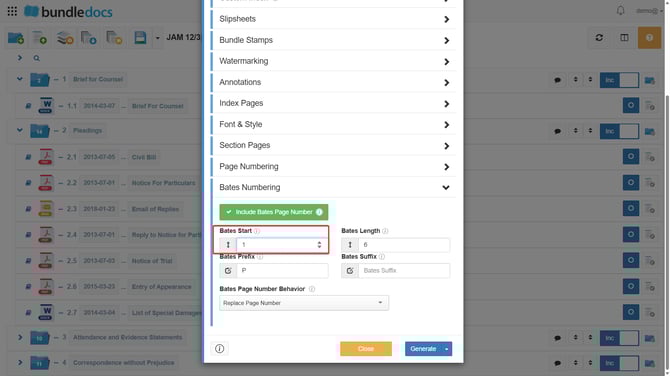
5. Enter your desired Bates Length. Bates Length is the minimum number of characters you desire, e.g if you enter "3", then each page number will display three characters, i.e 001,002,003 etc.

6. Enter your chosen Bates Prefix. Bates Prefix is the text which will appear before the page number.

7. Enter your chosen Bates Suffix. Bates Suffix is the text which will appear after the page number.
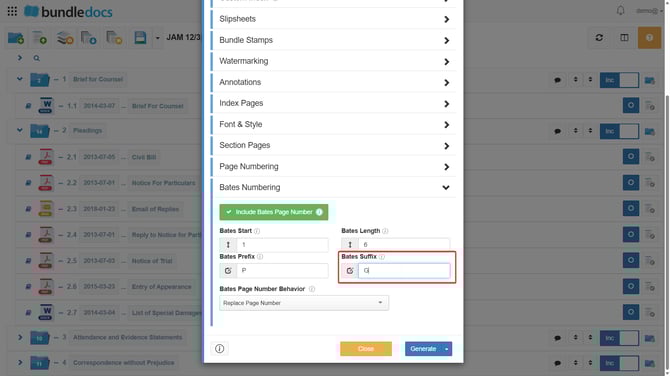
8. Choose to Replace Page Number (replace the standard page number with the bates page number) or Separate Bates Page Number (display the standard page number and also the bates page number).
9. Click Generate.
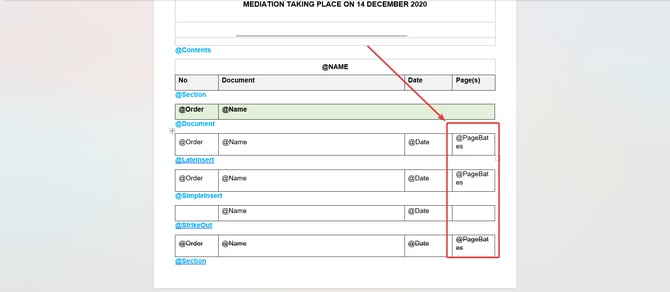
TOP TIP: If you are using a custom index, the @Page code needs to be changed to @PageBates for bates numbering to pull through.
This will successfully apply bates numbering to your page numbers and will appear like the below when generating depending on the settings you have chosen:
