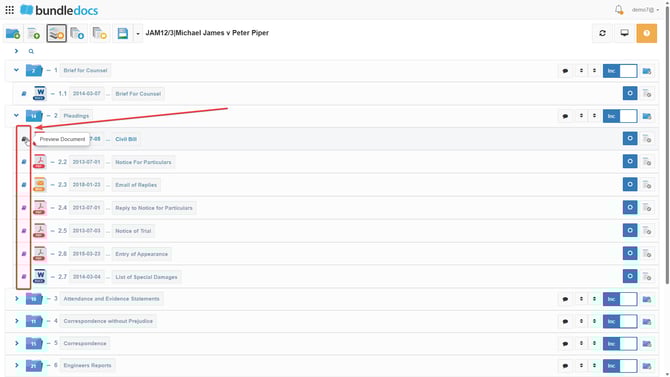
1. Start by opening the  Document Previewer of the document you want to add a custom bookmark.
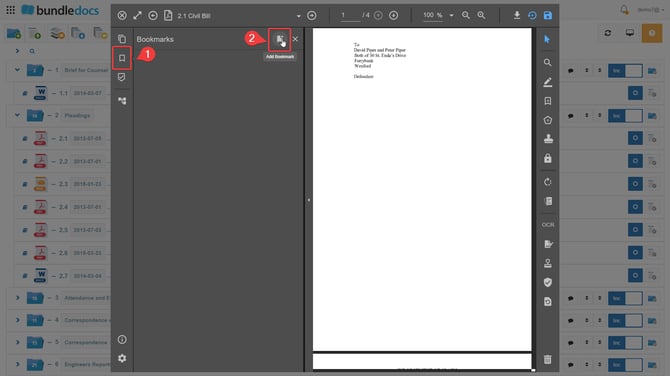
2. Once in the document previewer please go into Bookmarks View. When in bookmarks view you will have the option to add a custom bookmark by clicking the Add Bookmark button (see step 2 below).
3. Once you click the add bookmark button, you will be presented with a pop-up page where you can customize your bookmark. Here you can edit the text on the bookmark, text color, page number and formatting. 
4. Once you input the desired information into this pop up the custom bookmark will now appear in bookmarks view and will be visible once you generate your bundle.

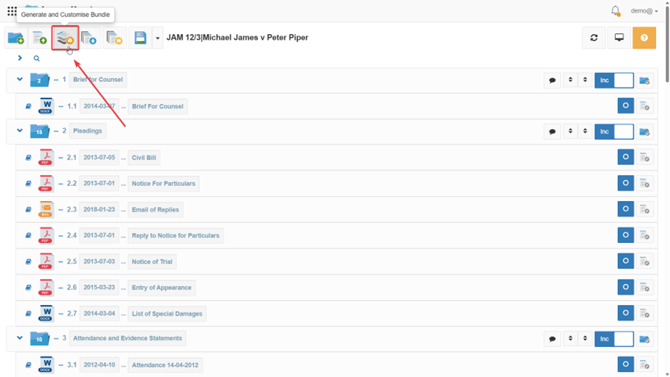
5. To do this please go to  Generate & Customise Bundle settings, which is the 3rd orange icon located at the top of your bundle.
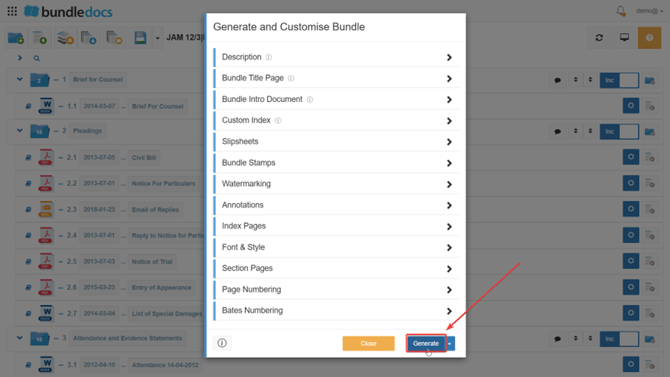
6. Click Generate.