
1. To add/remove a license, go to your user email at the top right corner > click on  Groups & Sharing in the drop down menu.

2. Once you're in Groups & Sharing, you'll be in the -png.png?width=25&height=20&name=Organisation%20(1)-png.png) Organisation group, identified by a brief case icon.
Organisation group, identified by a brief case icon.
3. Here you will see all the users listed. To the right of each user there’s a Bundledocs button, this is how we apply the license. When that button is Blue, the license is applied. When the button is White, the license is off.
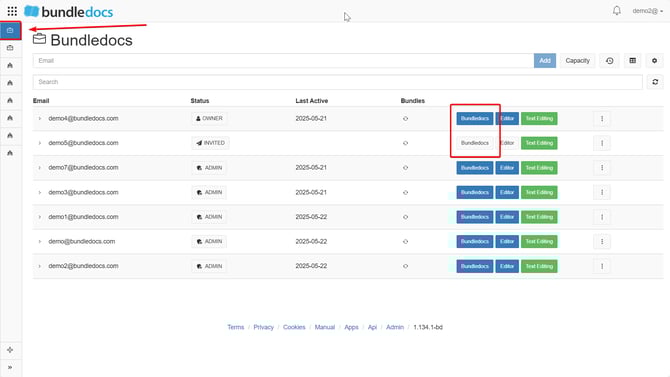
4. To add a license, you simply need to click on the Bundledocs button that appears in White for the user (meaning the license is off). This will prompt a confirmation window where you have to click OK.
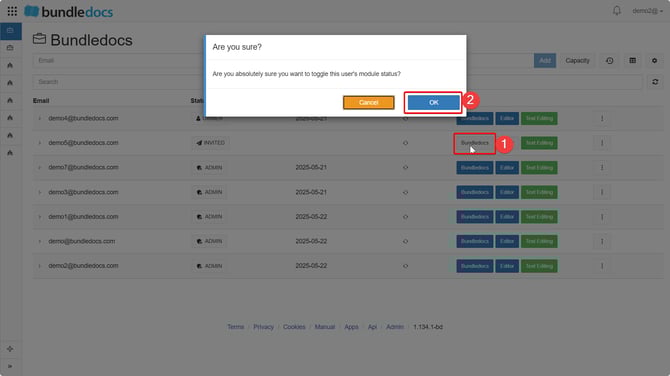
5. After clicking OK, the license will be applied and the Bundledocs button will turn Blue for the user.
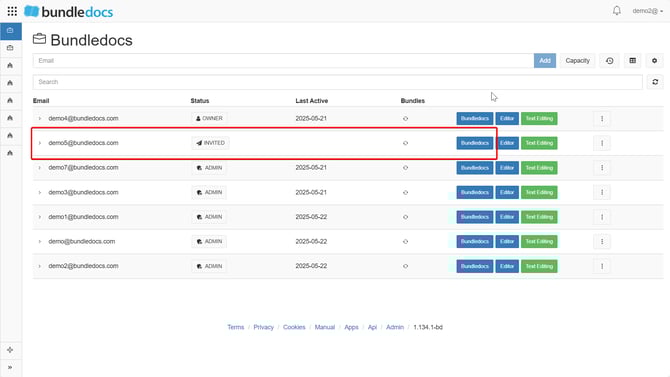
6. If you want to remove the license for a user, the steps are the same. Simply click on the Bundledocs button highlighted in Blue > confirm by clicking OK > the button will turn White and the license will be removed (this means the user won’t be able to create or collaborate on bundles).
Top tip:
1) You can remove the license from one user and assign to a different user. This is useful if you have a short amount of licenses available. If a user is on leave and a new member joins the firm, you can remove the license from the absent user and assign to the new user so they can work on bundles.
2) If you have admin users who won't create bundles and only do admin/management tasks, their licenses can also be removed to free space and assign those to users who will be creating bundles.